
Ring Doorbell Flashing or Blinking Blue? What Each Pattern Means, Chime and Cameras Included
On a Ring doorbell, blue is a status color, not an error. Each blue pattern by model, what to do when one loops, and how the Chime and Ring's cameras use blue for other things, including a Wi-Fi failure.
What to know
- On Ring doorbells, blue is a status color (charging, connecting, setup done, button pressed, call, reset, boot). White means setup, a firmware update, idle, or a failed setup; red means not enough power.
- A slowly flashing blue ring means factory reset on battery doorbells, but boot-up on Video Doorbell Wired, Wired Doorbell 2K, Battery Doorbell Plus, and Battery Doorbell 2K Plus.
- Only doorbells with a built-in battery show a charging light on the ring. Quick Release Battery Packs show green and amber on the pack itself, and the doorbell stays dark until the pack is back in.
- On a Chime or Chime Pro (2nd Gen), flashing blue means it is trying to connect; solid blue means setup succeeded; no light means it is online and idle.
- On Ring cameras the meaning flips by family: slow blue is setup mode on Indoor, Outdoor, and Stick Up Cams, but quick blue is a Wi-Fi failure on the bulb-style Floodlight and Spotlight Cams.
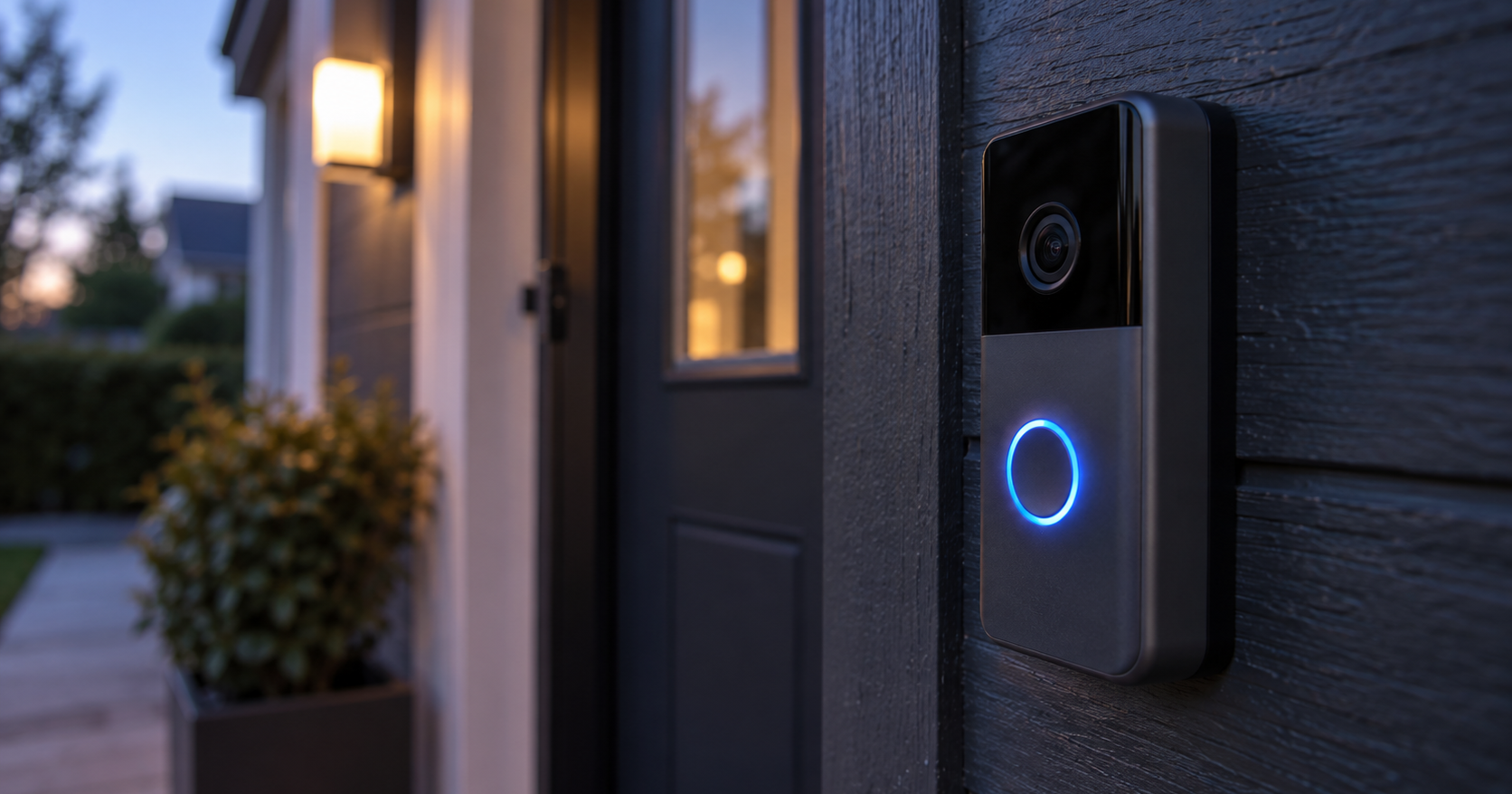
On a Ring doorbell, a blue light, whether you would call it flashing or blinking, means the device is doing something it was asked to do: charging, joining Wi-Fi, finishing setup, a pressed button, an active call, a factory reset, and on a few models, powering up. The colors that can mean trouble are white and red. One overlap causes the confusion: a slow flash of the whole ring is a factory reset on some models and an ordinary boot-up on others. The device does not tell you which, so note when it started. On the four models named below, a slow flash right after you restore power or put a battery back is a boot; the same flash out of nowhere on a battery doorbell is a reset.
These patterns cover US Ring doorbells, the Chime and the camera families named below. Ring Alarm devices, Smart Lighting and the Car Cam have their own light guides. Several doorbells and cameras were renamed in July and August 2026; if the name on your box does not match the app, Ring's list of product name changes maps the old names to the new ones. The hardware and its light patterns did not change with the names.
Blue is a status color, not an error color
All Ring doorbell models share the same front-ring light patterns unless Ring notes otherwise, and the colors split three ways. Blue means the doorbell is busy doing something. White means it is waiting on you or on your network. Red means it needs power.
In every pattern Ring lists, a blue light that will not stop is a normal pattern that has stalled. The job is to identify which pattern it is and whether it has run longer than it should.
Every blue pattern, decoded
- Blue circle filling clockwise, or one part of the circle flashing: charging. Only on doorbells with a built-in battery: Video Doorbell 1st and 2nd Gen, Battery Doorbell, and Battery Doorbell 2K. The lit portion is the charge level. Upper right quadrant flashing is 0 to 25 percent, the right half is 25 to 50, most of the circle is 50 to 75, and the whole circle flashing means fully charged. Doorbells with a Quick Release Battery Pack never show this pattern.
- Blue circle moving upward: connecting to Wi-Fi. The doorbell is joining your network during setup. It should give way to either the success pattern or a white failure pattern; Ring gives no time limit for this step, but endless repetition means the setup is stalling.
- Four corner blue LEDs flashing: setup succeeded. Normal. The Video Doorbell Elite does not show this one.
- Blue light spinning clockwise: the button was pressed. Normal. Seeing it with nobody at the door means something is pressing the button, or the button is sticking.
- Solid blue circle: active call. A live session with the speaker on. It goes out when the call ends.
- Blue circle flashing slowly: factory reset, or powering up, depending on the model. On battery-powered doorbells, except the Door View Cam, this is the factory-reset pattern. On the Video Doorbell Wired, Wired Doorbell 2K, Battery Doorbell Plus and Battery Doorbell 2K Plus, the same slow flash is the boot-up pattern. If it keeps going for minutes, it is stuck.
- Blue circle flashing, then a white light circling clockwise: factory reset. The reset pattern on the Door View Cam and on all wired doorbells.
What white and red mean on a Ring doorbell
A blue pattern can end in one of these, and that ending is the part that tells you what went wrong.
- White light spinning in a circle: setup mode. It times out after 10 minutes.
- White circle flashing repeatedly: firmware update. Leave it alone.
- White light flashing on one side: setup failed. The side names the failure. On the right, it could not find your network, commonly because of distance or a special character in the network name. On the top, the password was wrong. On the left, it reached Wi-Fi but not the internet.
- Solid white circle: idle mode. On a hardwired doorbell, and on a battery doorbell that is hardwired.
- White light filling the circle slowly, then flashing: boot-up. On the Wired Doorbell Plus and Wired Doorbell Pro.
- No light at all: idle mode. On a battery doorbell that is not hardwired.
- Red light flashing at the bottom: insufficient power. It only appears on wired doorbells that have no battery. If it persists after you have checked the transformer, contact Ring support rather than reset again.
Flashing blue while charging
What the light does while charging depends on the battery type and on whether the doorbell is hardwired.
Built-in battery (Video Doorbell 1st and 2nd Gen, Battery Doorbell, Battery Doorbell 2K). Charging runs through a port on the back, and the front ring fills clockwise. Ring's charging guide says the ring shows a solid light when the battery is full, while its light-pattern guide describes the same state as the whole circle flashing. Either way, a full charge can take up to 10 hours, and the charger has to supply at least 1 amp. A laptop port or an old phone charger can leave the ring stuck in the lower quadrants for hours, which looks like a fault and is not one. There is more on that in what stops a doorbell charging.
Quick Release Battery Pack (Video Doorbell 2, 3, 3 Plus, 4, Battery Doorbell Plus and Pro, Battery Doorbell 2K Plus and 4K Pro, Peephole Cam). These do not light up at all while the pack is out charging. The pack has its own two lights: solid green plus amber while charging, green alone when it is done. If the doorbell flashes blue after you slide the pack back in, that is the boot-up pattern on the Plus and 2K Plus models, and it can take up to 60 seconds.
Hardwired battery doorbells take a trickle charge from the transformer and show a solid white ring when idle, not blue. A hardwired doorbell that never shows that solid white idle ring is probably getting nothing from the wiring and has been running on its battery the whole time.
When the blue light will not stop
Sort it by which pattern is repeating.
Slow blue flash for more than a couple of minutes on a Video Doorbell Wired, Wired Doorbell 2K, Battery Doorbell Plus or 2K Plus. The doorbell is failing to finish booting. Power-cycle it: pack out for 10 seconds and back in, or for a wired doorbell, off at the breaker and on again. If a wired unit keeps looping, check the transformer against the range for that model: 10 to 24 VAC for the Video Doorbell Wired, 16 to 24 VAC for the Wired Doorbell 2K, and 8 to 24 VAC for the battery doorbells that can be hardwired. A doorbell that already knows the supply is too weak shows a red light at the bottom, so a clean slow flash points more at the boot than at the wiring.
Blue circle moving upward, repeating. The Wi-Fi join is not completing. Three of Ring's setup fixes apply here: keep the phone next to the doorbell during setup, take special characters such as apostrophes and spaces out of the network name, and use the 2.4 GHz network if a 5 GHz one does not appear, since some devices support nothing else. If the pattern ends in a white flash on one side, that side names the failure. For a doorbell that was working and has now dropped off, see our guide to one that keeps going offline. A setup that fails with the same white side-pattern after a factory reset, on a network your phone joins without any trouble, is the point to contact support.
Nothing at all after the battery ran flat. Charge for 30 minutes from a USB wall charger plugged into an outlet, and if that does not bring it back, hold the front doorbell button through a 30-second factory reset with the charger disconnected. A doorbell that stays dark after that is the point to contact support.
You have decided on a factory reset. Ring lists it as a last resort for an offline device, and it costs you every setting to solve something a power cycle may solve on its own, so keep it for last. Hold the setup button for 20 seconds and release. The button sits on the back on internal-battery models, under the faceplate at the front on removable-battery models, and under the faceplate on the right side on wired models. The reset pattern for your type follows, and you set the doorbell up again from scratch. Before any call to support, note the error code the app shows on an offline device's tile, such as "P1-65"; support can use it directly.
Ring Chime flashing blue
The Chime is the plug-in speaker that repeats the doorbell indoors. Its light patterns differ from the doorbell's and split by generation.
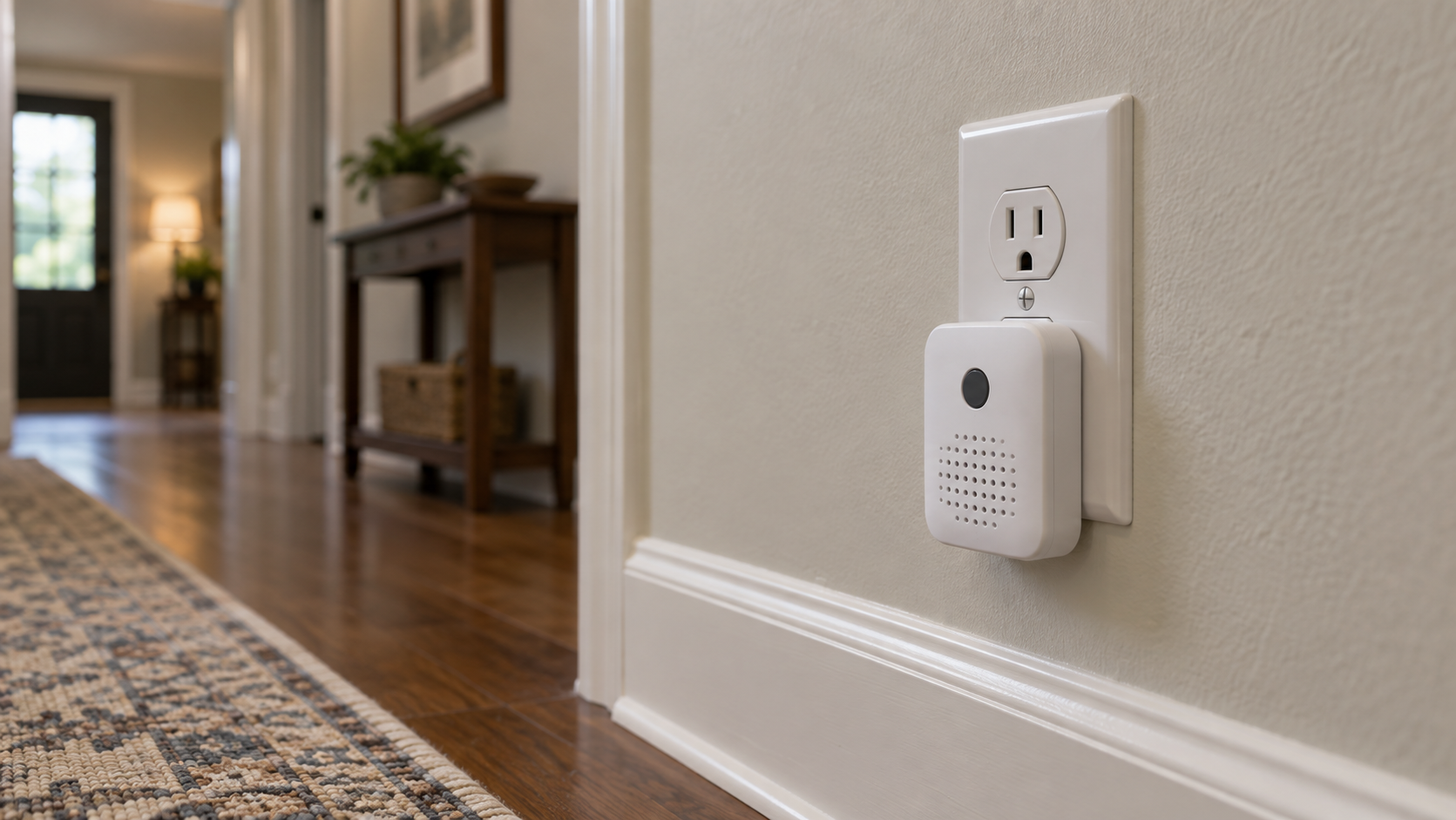
Chime and Chime Pro (2nd Gen), the current models with a circle light on the front:
- Blue: flashing means it is trying to connect to your network, solid means setup succeeded, and a circle alternating blue and green is a firmware update or a factory reset in progress.
- Green, the setup family: solid green is boot-up, flashing green is setup mode.
- Red, the problem family: flashing red means no internet, solid red means the Wi-Fi connection failed, alternating red and green means the password was wrong, and three short, three long and three short red flashes with a pause mean it is overheating.
- No light: online and idle.
Chime and Chime Pro (1st Gen), the discontinued models where the logo lights up:
- Solid blue: powered on.
- Logo flashing one second on, one second off: setup failed because it cannot detect your network.
- Pulsing logo: setup mode.
- Quickly flashing logo: scanning for networks or rebooting.
A 2nd Gen Chime that keeps flashing blue is stuck between trying and connected. In this order:
- Move it closer to the router for the initial setup.
- Check the network name for special characters.
- If it still loops, hold the setup button on the right side for 20 seconds to reset it.
- Set it up again.
Cameras: the same blue means different things
The meaning of blue shifts by camera family. A pattern that means setup mode on one camera means "cannot reach Wi-Fi" on another, and Ring warns for every family that patterns may differ when the camera is offline. Check the product name in the Ring app under Device Health first, then read the light against that family's patterns below. Reading a Floodlight Cam's light against an Indoor Cam's patterns can lead you to troubleshoot a network that is working.
Indoor Cam, Outdoor Cam and Stick Up Cam. Four blue patterns are the same on the Indoor Cam and on the Outdoor Cam and Stick Up Cam:
- Blue flashing slowly: setup mode.
- Solid blue: boot-up or an active recording.
- Blue flashing twice, then on for two seconds: firmware update.
- Blue pulsing slowly: two-way talk is enabled.
On Indoor Cam models other than the 1st Gen, the setup failures are blue too: a quick flash between two slow flashes means the password was wrong, three flashes then a stop means it could not find the network, and four quick flashes followed by a half-second pause means setup failed for some other reason. On the Stick Up Cam Wired and Elite, blue flashing for three minutes means it could not connect. The light sits below the lens on Outdoor Cam and Outdoor Cam 4K Pro and above it on other generations.
Floodlight Cam and Spotlight Cam. On the bulb-style models, flashing blue is a failure signal. By model:
- Floodlight Cam (original), Floodlight Cam Wired Plus and Spotlight Cam (1st Gen): a quickly flashing blue light means it could not connect to Wi-Fi because of distance or special characters in the network name. Setup mode is a slowly flashing white light instead.
- Floodlight Cam Wired Pro and Floodlight Cam 2K: flashing blue means the same, and a quick blue flash for five seconds during a factory reset comes before the reboot.
- Spotlight Cam 2K: blue flashing very quickly for three seconds, then repeating, is the same Wi-Fi failure.
- Spotlight Cam Plus and Spotlight Cam 4K Pro: the reverse. Flashing blue is setup mode, solid blue is boot-up or recording, and a green flash is the Wi-Fi failure.
Does a blue light mean someone is watching?
On cameras, a solid blue light does mean the camera is recording, and a pulsing blue means the speaker is live for two-way talk. On doorbells, a solid blue ring is an active call.
An indoor camera in a room that has become the office is pointed at you for most of the working day, and the solid blue light is the only signal you get that it is doing anything. Ring describes no way to switch that indicator off, which for a camera in the room you work in is useful.
What the light does not tell you is whether anything is being kept. Recording to the cloud depends on the subscription, not on the LED, and what gets recorded and when is a separate question from what the light is doing at the time.
Sources
Everything above comes from Ring's own light-pattern, charging, reset and troubleshooting articles and its tech specs, accessed in September 2026. Where two of them disagree, the text says so. How we research explains the approach.
- Ring Help, "Understanding doorbell light patterns" (all doorbell patterns in blue, white and red, including the charging quadrants)
- Ring Help, "Understanding Chime light patterns" (1st and 2nd Gen Chime patterns)
- Ring Help, "Understanding Indoor Cam and Pan-Tilt Indoor Cam light patterns" (Indoor Cam patterns, including the blue setup failures)
- Ring Help, "Understanding Outdoor Cam and Stick Up Cam light patterns" (Outdoor Cam and Stick Up Cam patterns, position of the light)
- Ring Help, "Understanding Floodlight Cam 2K and Spotlight Cam 2K light patterns" (Floodlight Cam and Spotlight Cam patterns by model)
- Ring Help, "Charging your Ring doorbell" (up to 10 hours, at least 1 amp, built-in and Quick Release models, pack lights, up to 60 seconds to power on)
- Ring Help, "Reset or power cycle your Ring device" (20-second reset, setup button locations, 10-second power cycle)
- Ring Help, "Fixing setup issues" (phone next to the doorbell, special characters, 2.4 GHz)
- Ring Help, "Fixing offline devices" (error code on the device tile, 30-minute charge for a drained battery, factory reset as a last resort)
- Ring Help, "Ring product name changes" (old and new model names, July and August 2026)
- Ring Help, Battery Doorbell Pro tech specs (hardwiring 8 to 24 VAC, battery doorbells)
- Ring Help, Video Doorbell Wired tech specs (hardwiring 10 to 24 VAC)
- Ring Help, Wired Doorbell 2K tech specs (hardwiring 16 to 24 VAC)