
Do Ring Cameras Work Without Wi-Fi? What Stops and What Keeps Them Online
An offline Ring camera leaves a gap: no live view, no alert, no clip, and nothing uploaded later. The four ways to lose the connection, what an Alarm Pro, Power over Ethernet and a phone hotspot each change, and why local storage is not offline recording.
What to know
- Ring doorbells and cameras need an active internet connection. Offline, there is no live view, no alerts and no recording, and nothing is saved for later.
- A Ring Alarm Pro with a subscription can keep cameras on its eero network online over cellular data during an internet outage (3 GB a month included), but in a power outage it shuts off Wi-Fi unless Power Packs are attached.
- Power over Ethernet models (Wired Doorbell 4K Elite, Stick Up Cam Elite, PoE versions of Outdoor and Spotlight Cams) remove the Wi-Fi link but still need internet behind the router.
- Ring Edge local storage on an Alarm Pro changes where 1080p video is stored, not whether the cameras need a connection.
- A phone hotspot works like any other Wi-Fi network for setup, but every clip and live view uses the phone's cellular data, and Ring recommends 2 to 15 Mbps of upload speed per device depending on resolution.
A Ring doorbell or camera needs an active internet connection to function. Cut the connection and the camera stops streaming, stops alerting and stops recording, and it does not buffer footage to upload when the network returns. An outage is lost time, not delayed time. There are three partial exceptions: a Ring Alarm Pro can carry your cameras over cellular data while the home internet is down, Power over Ethernet swaps the Wi-Fi link for a cable but still needs the internet behind it, and a phone hotspot is another Wi-Fi network with its own limits.
This covers Ring doorbells, cameras and the Chime. Ring Alarm sensors and the Alarm base station are a different case for their own alarm function: an Alarm system with Cellular Backup can still signal the monitoring center without internet, which is separate from what the cameras can do. Ring Intercom has its own connectivity rules, and the discontinued Car Cam is not covered here.
If a camera has just gone offline, start by finding which link broke: the router, the internet behind it, the power, or the camera's distance from the router. The status light and the app's error code tell you which, and the four cases below are the place to start. If you are shopping for something that keeps working through an outage, only the Alarm Pro section answers that, and it answers an internet outage and a power outage differently.
What stops when a Ring camera goes offline
There is no local storage inside the camera and no cellular radio, so nothing takes over when the connection drops: no live view, no alerts, no recorded events, and no motion detection either.
Instead, the device tries to reconnect, and its status light shows how far it gets. The app marks it with an offline icon, and tapping the icon shows an error code such as "P1-65". If it stays offline after the network returns, use Reconnect in Device Health; a doorbell may also need a power cycle. The light patterns tell you whether the device reached the Wi-Fi and failed at the internet, or never reached the Wi-Fi at all.
The Chime depends on the same connection. It is a Wi-Fi speaker that receives doorbell alerts over the internet, so with the network down it has nothing to play. While it tries to reconnect, it shows a dedicated "No internet" warning, a flashing red circle on the 2nd Gen models.
Four different ways to be without Wi-Fi
The router is down or out of reach. The camera has no path to the internet, so everything stops until the router is back. A camera too far from the router ends up in the same state. Ring sets the signal strength bands: 0 to -60 is strong, -60 to -70 is okay, -70 to -80 is poor with delays and interruptions, and -80 or worse means intermittent service or falling offline. A camera in that last band is effectively without Wi-Fi for part of the time.
The internet is down but the router is up. The camera stays connected to Wi-Fi and the result is identical, because the service it needs is in the cloud. On a doorbell this shows as the white light flashing on the left: connected to Wi-Fi, unable to reach the servers.
The power is out. A wired doorbell or plug-in camera loses power outright. A battery device keeps running, but the router does not, so it is offline anyway. The only Ring setup that bridges a real blackout is an Alarm Pro with Power Packs, below.
There is no Wi-Fi at the location. A camera cannot be set up without a network and cannot run standalone afterward. That leaves a network you create yourself, a PoE model on wired Ethernet, or an Alarm Pro using cellular as its internet.
Alarm Pro: the exception that bridges an internet outage
The Ring Alarm Pro base station has an eero Wi-Fi 6 router and a cellular modem inside it. With a compatible subscription, its 24/7 Backup Internet feature moves the whole eero network, cameras included, onto cellular data when the home internet fails, and moves it back automatically when the connection returns. In the US, the plan includes 3 GB of data every month, with extra data at $1 per gigabyte (USD).
If you work from home, the outage that takes your doorbell offline also takes your working day with it: everything on that eero network rides the cellular link, laptop included. Whether 3 GB carries you through a working day depends on what else is on the network. Ring estimates that 3 GB covers roughly 300 video clips or about 1.5 hours of streamed video, and a 4K doorbell, for which Ring recommends 15 Mbps of upload speed, draws from the same allowance as your laptop. When the 3 GB is used up, Backup Internet switches off unless you have opted in to extra data.
The cameras have to be on the Alarm Pro's eero network rather than a separate router. By default every device on that network, Ring or not, switches to cellular, and you can turn cellular access off per device. Backup Internet covers an internet outage, not a power outage. When the power goes out, the base station runs on its internal battery for up to 24 hours in Low Power Mode, which switches off most functions and Wi-Fi to save energy, even when the internet itself is fine. You can still arm and disarm, and professional monitoring still receives alarm signals, but the cameras go dark. Keeping them up through a blackout takes Ring Power Packs, each good for up to eight hours; with them attached, the Alarm Pro keeps running its features, backup internet included. Ring gives two numbers for how many you can chain: up to three in its support article and in the product description, up to four in the product FAQ. Plan on three.
An internet outage needs the cellular backup; a power outage needs the Power Packs as well. Buying the fix for one does not buy the fix for the other.
Power over Ethernet: no Wi-Fi, still needs internet
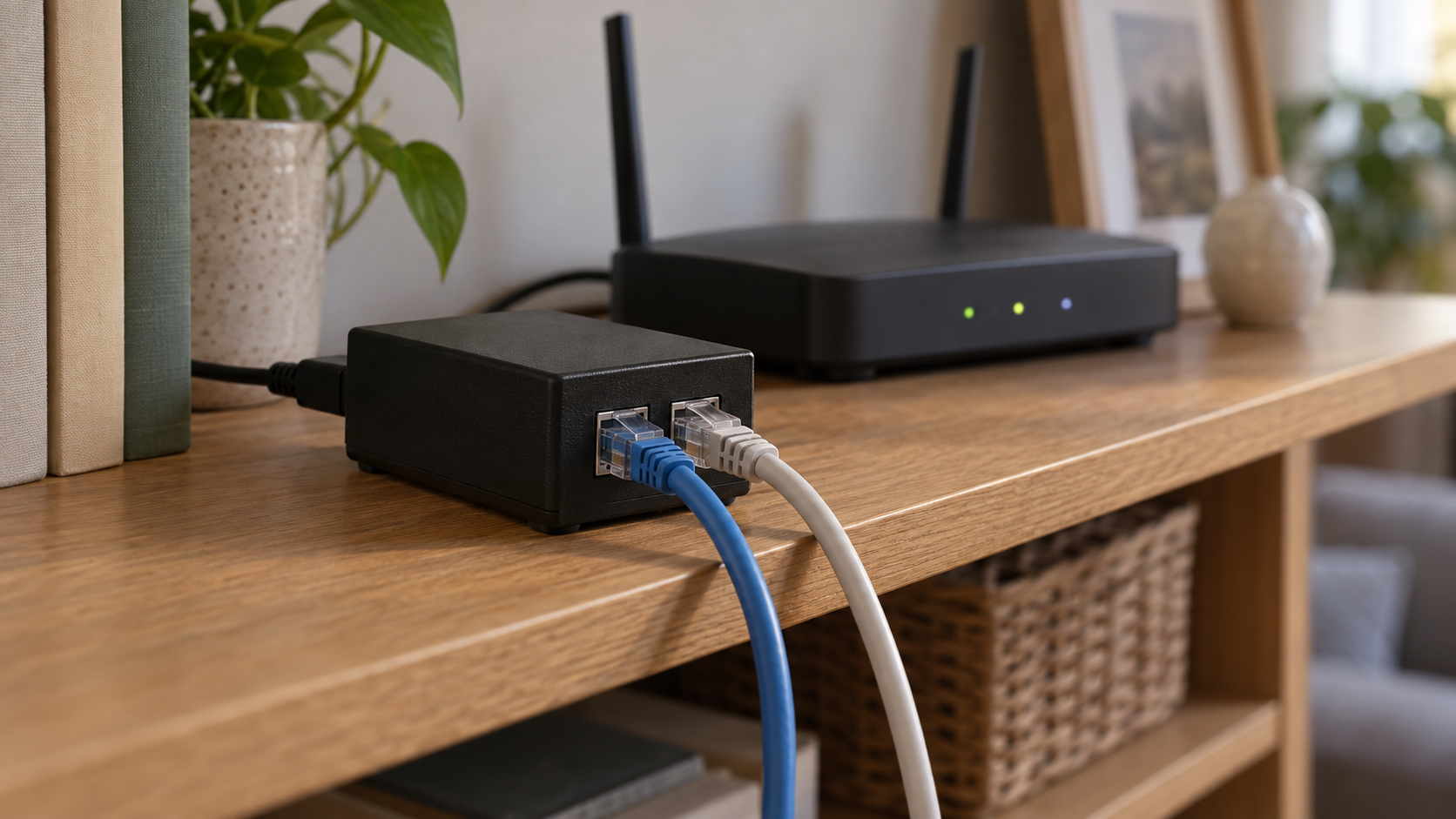
Power over Ethernet wires power and internet together through a single Ethernet cable, which takes the Wi-Fi link out of the chain entirely. The Ring devices that work this way:
- Wired Doorbell 4K Elite
- the original Video Doorbell Elite
- Stick Up Cam Elite
- the PoE versions of the Outdoor Cam Plus, Outdoor Cam 4K Pro and Spotlight Cam 4K Pro
They need a PoE-capable switch or injector, since many home routers do not supply PoE, Cat 5e cabling or better with Cat 6 suggested for long runs, and a maximum run of 328 feet. Check the power standard too: the Wired Doorbell 4K Elite and the PoE+ Converter Mount that the Outdoor Cam and Spotlight Cam PoE bundles use both require a PoE+ (802.3at) supply, while the Stick Up Cam Elite runs on standard 802.3af PoE.
This is the right answer for a detached garage, a metal-clad wall, or the far end of a house where the signal has never been reliable. It is not an answer to an internet outage. A PoE camera plugged into a router with nothing upstream is in the same state as a Wi-Fi camera with the internet down.
Local storage is not offline operation
Ring Edge lets an Alarm Pro store and process video from enrolled 1080p doorbells and cameras on a microSD card in the base station instead of in the cloud. It changes where the recordings live, not whether the devices need a connection. It requires a compatible subscription and cameras on the Alarm Pro's eero network, and it does not support 2K or 4K devices.
Ring does not describe Ring Edge as a way to keep recording through an internet outage, and we would not buy an Alarm Pro on that assumption. Buy it for the cellular backup: $249.99 for the base station plus the Ring Pro plan that Backup Internet needs, $19.99 a month or $199.99 a year (US prices in USD, September 2026; the base station was listed as out of stock on September 22). Treat local storage as a privacy feature, which is a real thing to want for its own sake. There is more on where the footage goes if that is the part you care about.
Running a camera on a phone hotspot
Ring gives no separate instructions for a hotspot, but a hotspot is a Wi-Fi network with an internet connection, so the ordinary setup rules apply: keep special characters such as apostrophes and symbols out of the network name, remember that some devices only join 2.4 GHz networks, and keep the hotspot phone near the device while it sets up.
A hotspot has two limits. Every event clip and every live view goes out over the phone's cellular data, and Ring recommends an upload speed of 2 to 15 Mbps for that link, depending on the camera's resolution. And the camera goes offline whenever the phone leaves the house. We would use a hotspot for a temporary setup, not a permanent one; a dedicated cellular hotspot or an Alarm Pro on cellular is the durable version of the same idea.
When a camera keeps dropping off
Work through the causes in this order, from the cheapest check to the one that costs you your settings:
- Confirm the device has power and, on battery models, a charged battery.
- Confirm a hardwired device is on the correct transformer.
- Improve the signal: move the device closer to the router, add a Chime Pro as an extender, or move it to a 2.4 GHz network instead of 5 GHz.
- Restart the router and modem by unplugging both for 30 seconds.
- Test the upload speed. The requirements add up across devices: Ring's example is a doorbell needing 2 Mbps plus a camera needing 3.5, so that household needs at least 5.5 Mbps upload before anything else touches the connection.
- Remove any second router from the network or put it in bridge mode. Ring says more than one router can cause this kind of problem.
- Factory reset last, by holding the setup button for 20 seconds. It costs you your settings.
The full walkthrough, including how to read the signal-strength number that predicts the next dropout, is in our guide to a doorbell that keeps going offline.
Sources
Everything above comes from Ring's own support articles, plan page and product pages, accessed in September 2026; the hotspot section applies Ring's general setup rules to a hotspot. Features, data allowances and prices are for the United States. How we research explains the approach.
- Ring Help, "Understanding wifi recommendations for Ring devices" (active internet required; RSSI table; upload speeds)
- Ring Help, "Fixing offline devices"
- Ring Help, "Using Motion Detection" (offline devices do not detect motion)
- Ring Help, "Understanding doorbell light patterns"
- Ring Help, "Understanding Chime light patterns"
- Ring Help, "Using Ring Alarm Pro during power and internet outages"
- Ring Help, "Understanding 24/7 Backup Internet and Extra Data" (eero network requirement; per-device cellular access; 3 GB usage estimates; data limit)
- Ring, "Ring Protect Plans" (Backup Internet, 3 GB, extra data $1/GB)
- Ring Help, "Using Ring Edge: Connecting Your Ring Devices to Alarm Pro"
- Ring Help, "24/7 Recording" (bandwidth note)
- Ring Help, "Understanding Power over Ethernet (PoE) and PoE+"
- Ring Help, "Installing Wired Doorbell 4K Elite" (PoE+ switch or injector, Cat 5e)
- Ring, "Stick Up Cam Elite" (802.3af PoE or 802.3at PoE+)
- Ring Help, "Video Doorbell Elite tech specs" (PoE, 802.3af or 802.3at)
- Ring, "Outdoor Cam 4K Pro" (PoE variants in the comparison; PoE+ Converter Mount requires a PoE+ supply)
- Ring Help, "Fixing setup issues"
- Ring Help, "Reset or power cycle your Ring device"
- Ring, "Alarm Pro Base Station" (price)
- Ring, "Ring Power Pack" (up to three packs in the description, four in its FAQ; eight hours each)
- Ring, "Chime Pro"