
Ring Doorbell Offline? How to Get It Back Online and Keep It There
Reconnect before you reset: a factory reset erases your settings, and Ring calls it the last resort. The three checks in order (power, Wi-Fi signal, internet), how a reboot, a power cycle and a factory reset differ, and the Device Health number that shows whether a doorbell will keep dropping.
What to know
- An offline Ring doorbell has lost power, Wi-Fi, or the internet behind the Wi-Fi. Device Health shows all three; go through them in that order.
- Signal Strength (RSSI) predicts dropouts: 0 to -60 is strong, -60 to -70 okay, -70 to -80 poor with interruptions, -80 or worse means falling offline. A weak signal is fixed at the router, not at the doorbell.
- On a wired doorbell, a red light flashing at the bottom is Ring's insufficient-power signal. Compare the transformer reading in Device Health with Ring's voltage and VA range for your model, and check the power supply and installation against the guide for your exact model before replacing anything.
- A white light flashing on the left means Wi-Fi is fine but the internet or Ring's servers are unreachable: restart the router and modem for 30 seconds, check upload speed, and look for a second router.
- Reboot (from the app), power cycle (battery out 10 seconds or breaker off), and factory reset (setup button 20 seconds) are three different tools. Power cycle a doorbell that stays offline or stops responding; reset last, because it reverts your settings.
A Ring doorbell shows as offline when one of three things has failed: its power, its Wi-Fi link, or the internet behind the Wi-Fi. Check them in that order, which is also Ring's order; each check is quick. For a one-off outage the fix can be as small as a restarted router and a tap on Reconnect in the app. A factory reset comes last: it erases your settings and puts the doorbell back in setup mode, and it changes nothing about the signal at the door or the power coming up the wires.
These steps cover Ring doorbells on Wi-Fi. Ring Alarm base stations and sensors connect differently, with Ethernet on the base station and cellular backup available with a compatible subscription, and have their own offline troubleshooting. A Power over Ethernet doorbell such as the Wired Doorbell 4K Elite takes power and internet over the Ethernet cable (the 4K Elite also lists Wi-Fi 6 in its specs, but Ring sets it up on PoE); when one goes offline, look at the PoE switch or injector, a cable run over 100 meters (328 ft), or a faulty cable. Cameras follow the same three checks as doorbells but use different light patterns.
The order:
- Open status.ring.com. If Ring itself is down, nothing on your side will help.
- Check power in Device Health: the battery level, or the transformer reading on a wired model. A doorbell that shows no light and does not react to anything is off rather than offline; power cycle it here (battery pack out for ten seconds, or the breaker off and on) before going further.
- Check Signal Strength in Device Health. A poor reading is the cause to fix first, and a reset will not change it.
- Restart the router and modem, then tap Reconnect in Device Health.
- Still offline: power cycle the doorbell. Factory reset only if that fails too.
If the doorbell drops every few days, the same Signal Strength number shows whether it sits at the edge of its Wi-Fi, and the last section matches each pattern of dropouts to its cause.
What "offline" means, and where the app shows it
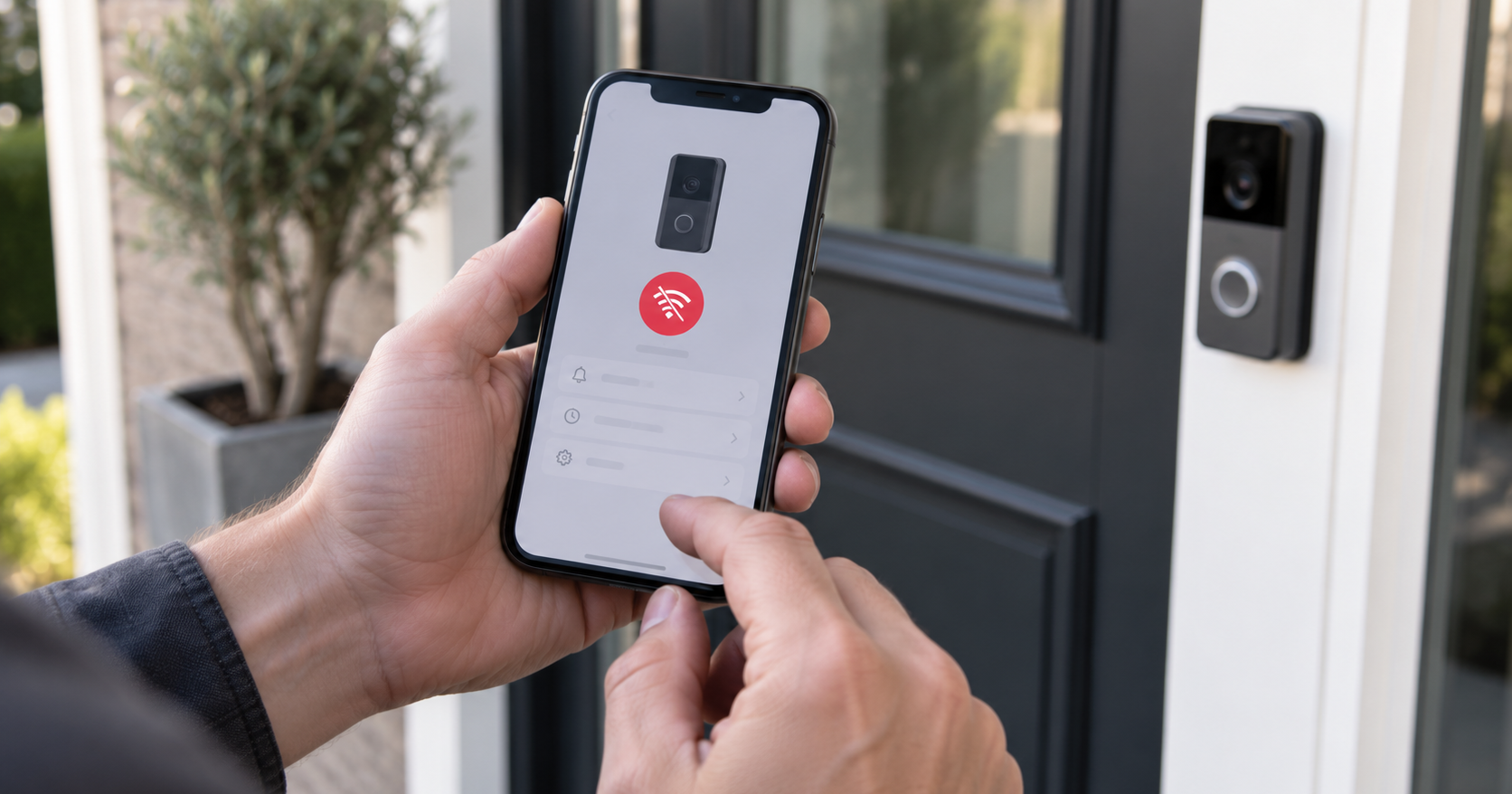
The app tells you in three places. The device tile on the dashboard picks up an offline icon, and tapping it gives an error code such as "P1-65" with steps attached. Device Health has a Status line that says online or offline outright. It also shows the power source, the battery level or transformer reading, and Signal Strength, so each check below starts there. A push notification, text or email may also arrive.
While the doorbell is offline it does nothing: no live view, no alerts, no recordings, and no motion detection either. A gap on the timeline is a real gap, not a missed upload waiting to catch up.
Before touching anything, open status.ring.com or the System Status tool inside Device Health. If the outage is on Ring's side, nothing below will help until Ring has fixed it.
Power: the first thing to rule out
A doorbell with no power is not offline in the Wi-Fi sense. It is off, its light is dark, and no network fix will bring it back. It is also the quickest thing to rule out: Device Health shows the power source, the battery level on battery models, and on wired models the transformer voltage or power output, with a warning when it falls short.
Battery models. Low battery or a dark ring: charge it. If it drained completely and will not come back, charge it for 30 minutes on a USB wall charger plugged into an outlet. If that is not enough, disconnect the charger and hold the front button while you do a factory reset for 30 seconds. A battery doorbell wired in for trickle charging has one more sign to check: it should show a solid white idle ring, which Ring lists as the idle pattern for hardwired doorbells. If it never does, the wiring is probably not delivering a charge and the doorbell has been running on its battery, which would explain a flat pack that you expected to be topped up.
Wired models. A red light flashing at the bottom is Ring's signal for insufficient power. Before replacing anything, read the transformer figure in Device Health and compare it with the range for your model in Ring's hardwiring guidelines: battery doorbells and the Video Doorbell Elite take 8 to 24 VAC (5 to 40 VA); the Video Doorbell Wired 10 to 24 VAC (8 to 40 VA); the Video Doorbell Pro, the earlier Wired Doorbell Plus and Pro, the Wired Doorbell 2K Plus and the Wired Doorbell 4K Pro 16 to 24 VAC (10 to 40 VA). The Wired Doorbell 2K is the exception, because Ring disagrees with itself: the hardwiring table says 10 to 24 VAC, and its product page says 8 to 24 in one place and 12 to 24 in another. For that model, go by its installation guide and confirm the requirement with Ring before buying a transformer; the reading in Device Health tells you what the current one delivers.
Watch for an old transformer. An 8 or 10-volt unit that drove a mechanical chime for decades is inside the range for a battery model and well short of the 16-volt floor a Pro needs; Device Health shows the power warning but not the reason. Treat a reading under the range, or a warning with a reading inside it, as a reason to check the power supply and the installation against Ring's requirements for your model, the VA capacity included. The earlier Wired Doorbell Plus and Wired Doorbell Pro need the Pro Power Kit, a small module fitted inside the chime; the current 2K Plus and 4K Pro do not. On the two earlier models, a missing kit is one of the first things the installation guide has you check. Local rules may require a qualified electrician, and the mains side of a transformer is that electrician's job. For anything at the chime or the low-voltage wiring, switch the circuit off at the breaker first.
Signal Strength: the number that predicts the next dropout
Device Health reports Signal Strength as an RSSI figure, and closer to zero is better. Ring gives the bands plain meanings:
- 0 to -60: great.
- -60 to -70: okay, but could be better.
- -70 to -80: poor, with delays and interruptions.
- -80 or worse: intermittent service or falling offline.
A doorbell at -75 is not broken, and a factory reset will not move that number. It can work for hours and then drop when the network gets busier or when interference gets in the way, such as large appliances or other electronics. If the doorbell keeps going offline and the RSSI is -70 or worse, fix the signal first; if the RSSI is strong, skip to the internet check below.
What weakens the signal is distance from the router, walls of brick, stucco or metal, large appliances, electronics and mirrors. If the router sits at the back of the house where the provider installed it, the front door is the farthest point from it, with an exterior wall in between.
The fixes, in the order we would try them. Move the router closer, if its position allows. Add a Chime Pro, which doubles as a Wi-Fi extender for Ring devices and has a placement test built into the app; the current version is dual-band. Or replace the router with a mesh system. Ring's own version is the Alarm Pro base station, with an eero Wi-Fi 6 router built in, rated by Ring for 1,500 square feet (about 140 m2).
A router setting can also help. Some Ring devices support only 2.4 GHz, and Ring suggests the 2.4 GHz network when the 5 GHz one does not work. If your router broadcasts both bands under one network name, give the 2.4 GHz band its own name in the router settings so you can pick it during setup. That split is a standard router option, not a step Ring describes.
When the Wi-Fi is fine and the internet is not
Strong signal, still offline: the problem sits past your router. On the doorbell this shows as a white light flashing on the left, which means it joined the Wi-Fi but cannot reach Ring's servers.
Three things to do, in order. Unplug the router and modem for 30 seconds and plug them back in. Run a speed test next to the router and again at the door, then compare the upload figure with what your model needs: 2 Mbps for 1080p, 2.5 for 1536p, 10 for 2K, 15 for 4K, and those figures add up across every camera on the network. And count your routers, because Ring says more than one router on the network can cause connection problems; remove one or put it in bridge mode.
If the doorbell went offline right after a router or ISP change, look at the new router before the doorbell. The doorbell has to reach Ring's servers over the ports Ring lists, so check the new router for a firewall, parental-control or device-isolation feature that blocks outgoing traffic on those ports. The list is about letting the doorbell out, not about forwarding ports to it. Keep the firewall level on High, try Medium only if the doorbell still will not connect, and never switch it off, as Ring advises. On a cellular router or hotspot, set IPv4 or IPv4v6, because IPv6-only does not work.
Reconnecting, and reading the light while it happens
Once power, signal and internet check out, reconnect from the app, with your phone held next to the doorbell:
- Open Devices in the Ring app.
- Tap the doorbell.
- Tap Device Health.
- Under Network, tap Reconnect or Change Network and follow the prompts.
Watch the light while it works. A blue circle moving upward means it is joining the network. Four blue corner lights flashing means it succeeded (the Video Doorbell Elite does not show this pattern). A white light flashing tells you where it failed: on the right it could not find the network, on the top the password was wrong, on the left it joined the Wi-Fi but not the internet.
A white light flashing on the right has two causes: distance from the router, and special characters in the network name, such as an apostrophe, a space, or symbols like !, @, #, $, % and &. If the signal is fine, rename the network without them and try again.
Reboot, power cycle, factory reset: three different tools
The three do different jobs, and the one that erases your settings goes last.
A reboot happens in the app: Device Health, then Reboot this Device. It is meant for blank recordings, pink or discolored video and notifications that arrive wrong, and it takes several minutes. Because it is sent through the app, it needs the doorbell to be connected, which makes it the wrong tool for a doorbell that is offline.
A power cycle is physical. Pull the battery pack for 10 seconds and put it back, or on a wired doorbell, turn the power off at the switch or breaker and back on. Your settings stay. For a doorbell that stays offline after a reconnect or stops responding altogether, Ring lists both this and the factory reset; the power cycle is the cheaper of the two, so try it first.
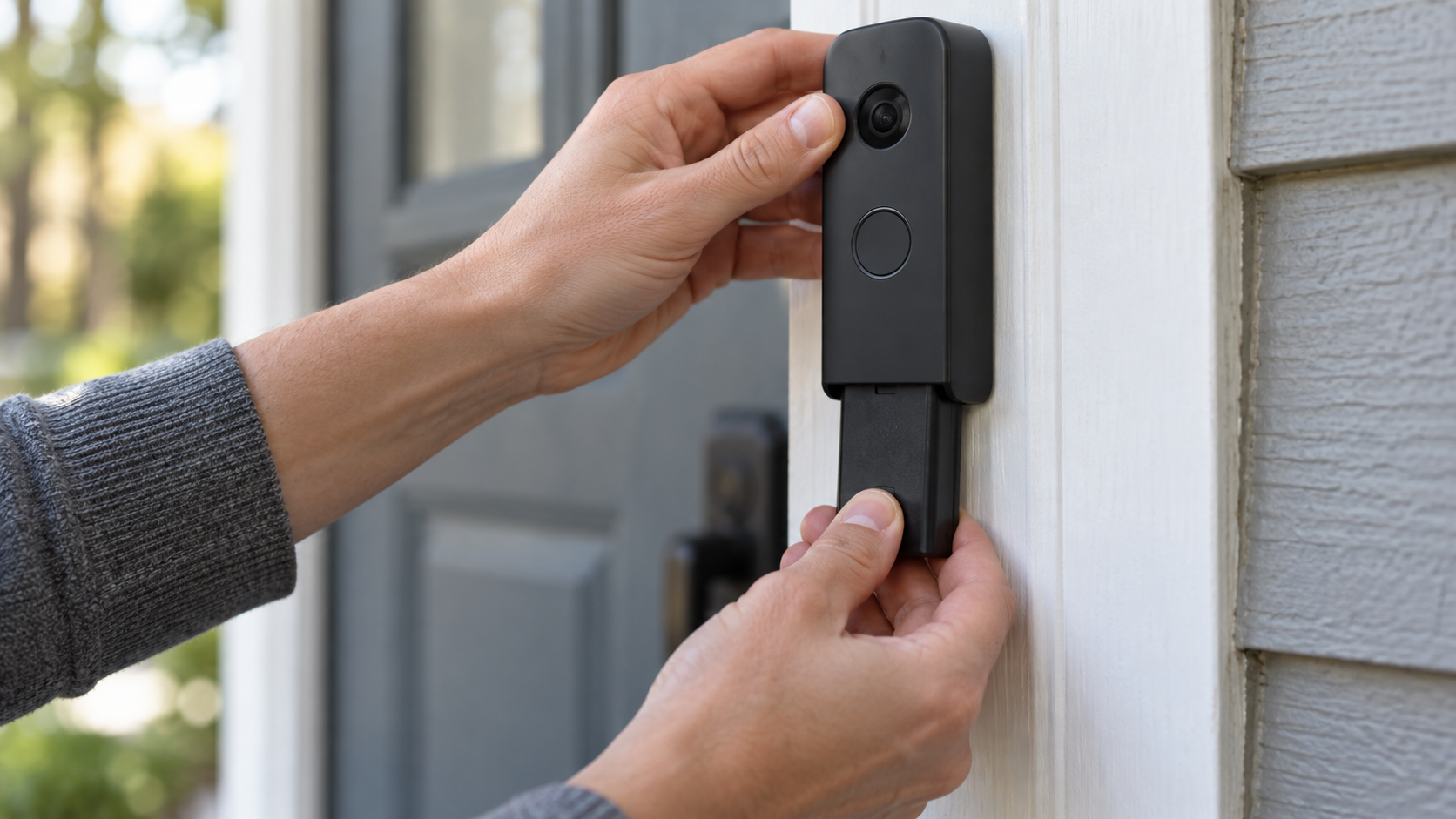
A factory reset erases the settings and drops the doorbell back into setup mode: hold the setup button for 20 seconds, then release. The button sits on the back of doorbells with an internal battery, and under the faceplate on removable-battery and wired models. Afterward you set the doorbell up from scratch, and your video storage time reverts to the default. Ring calls it the last resort, and every step above it is cheaper to try first.
Why a Ring doorbell keeps going offline
A doorbell that reconnects and then drops again is telling you which check it is failing. Match the pattern to the check; where more than one fits, start with the cheapest.
- Drops at busy times of day, RSSI in the -60 to -70 "okay" band or worse: marginal signal. Fix the signal, not the doorbell.
- Drops when the battery runs low: the battery is the weak point. Charge it more often, wire it in for a trickle charge, or add a solar charger; Ring sells a different one per doorbell generation and says which fits which. Check the level in Device Health at the moment it drops, not the next morning.
- Wired, with the red insufficient-power light: read the transformer figure in Device Health against Ring's voltage and VA range for your model, then check the power supply and the installation against the installation guide for your exact model, which on the earlier Wired Doorbell Plus and Pro includes the Pro Power Kit. If the transformer turns out to be the part to replace, Ring's own Hardwired Transformer is rated at 16 VAC and 30 VA, which meets the 16-volt floor of the Pro models exactly; leave the mains side of that job to a qualified electrician.
- Went offline right after a new router, ISP or firewall change: outgoing traffic blocked by the new router's firewall or a device-isolation feature, a second router without bridge mode, IPv6-only on a cellular router, or a special character in the network name.
- Every Ring device you own went offline at the same moment: status.ring.com, before anything else.
- A white circle flashing over and over: firmware installing. Leave it alone; it comes back when the update finishes.
Sources
Everything above comes from Ring's support articles and product pages below, accessed in September 2026. The transformer ranges, port list and app menu paths are Ring's US figures and change when the hardware does. How we research explains the approach.
- Ring Help, "Fixing offline devices"
- Ring Help, "Checking Device Health in the Ring App"
- Ring Help, "Understanding wifi recommendations for Ring devices" (RSSI bands, upload speeds, signal obstacles)
- Ring Help, "Guidelines for Hardwiring Your Ring Video Doorbell" (transformer ranges per model; Pro Power Kit required for Wired Doorbell Plus and Wired Doorbell Pro, not for Wired Doorbell 2K Plus and 4K Pro)
- Ring Help, "Installing Ring Wired Doorbell Plus" and "Installing Wired Doorbell Pro" (Pro Power Kit step)
- Ring, "Wired Doorbell 2K" product page (8 to 24 VAC in the FAQ, 12 to 24 VAC in the product notes)
- Ring Help, "Understanding doorbell light patterns" (red light flashing bottom: insufficient power; solid white: idle, hardwired)
- Ring Help, "Fixing setup issues" (2.4 GHz, special characters in network names)
- Ring Help, "Understanding router security settings" (ports Ring devices use, firewall levels, IPv4 on cellular routers)
- Ring Help, "Reset or power cycle your Ring device"
- Ring Help, "Using Motion Detection" (offline devices do not detect motion)
- Ring Help, "Adjusting your video storage time" (reset reverts storage time)
- Ring Help, "Understanding Power over Ethernet (PoE) and PoE+"
- Ring, "Ring System Status"
- Ring, "Chime Pro" product page (dual-band, placement test)
- Ring, "Alarm Pro Base Station" product page (built-in eero Wi-Fi 6, 1,500 sq ft)
- Ring, "Hardwired Transformer" product page (compatible models), and Ring Help, "Safety and Compliance Information for Hardwired Transformer Kit" (16 VAC, 30 VA)
- Ring Help, "Solar chargers for battery doorbells" (which charger fits which doorbell)
- Ring, "Wired Doorbell 4K Elite" product page (tech specs: PoE+ for power and internet, Wi-Fi 6)