
Ring Doorbell Not Detecting Motion? Start With Event History
A Ring doorbell that misses motion has one of three problems: it is not detecting, it detects but the alert never reaches your phone, or it alerts but saves no video. The checks for each, in the order we would run them, from the free toggles in the app to the phone's Focus settings.
What to know
- Event History tells you which problem you have: no event means the doorbell did not detect the motion; an event without an alert means the alert settings or the phone dropped it.
- Motion Detection and Motion Alerts are separate toggles. The first detects and records, the second notifies; both have to be on.
- With Modes enabled, the doorbell can be set not to record in Disarmed or Home. Disable Modes and test a motion event.
- On a battery doorbell, Motion Frequency on Regularly or Periodically pauses detection after each alert. Set it to Frequently while testing.
- Ring puts doorbells at 48 in from the ground; mounted too high or too low, detection can be inconsistent.
- Snooze, Motion Schedules, Smart Alerts set to record without notifying, and Focus or Do Not Disturb on the phone all silence alerts while recording continues.
Open Event History for the doorbell in the Ring app before you change a single setting. If the moment you missed is not in the list, the doorbell did not detect it, and the checks are on the device: online, Motion Detection, Modes, zones, sensitivity, Motion Frequency. If the moment is listed but your phone said nothing, the doorbell did its job and the alert was lost in the alert settings or on the phone. Ring gives the same first check for missed motion events and for missing notifications. The sections below follow what Event History shows.
These checks cover Ring doorbells and cameras run through the Ring app, with the setting names Ring used in the US in September 2026. Ring lists Motion Frequency and Advanced Motion Detection as settings for battery-powered devices; Smart Alerts and recorded video need a Ring subscription. The Ring Alarm Motion Detector is a different product with its own settings and is not covered.
Check Event History first
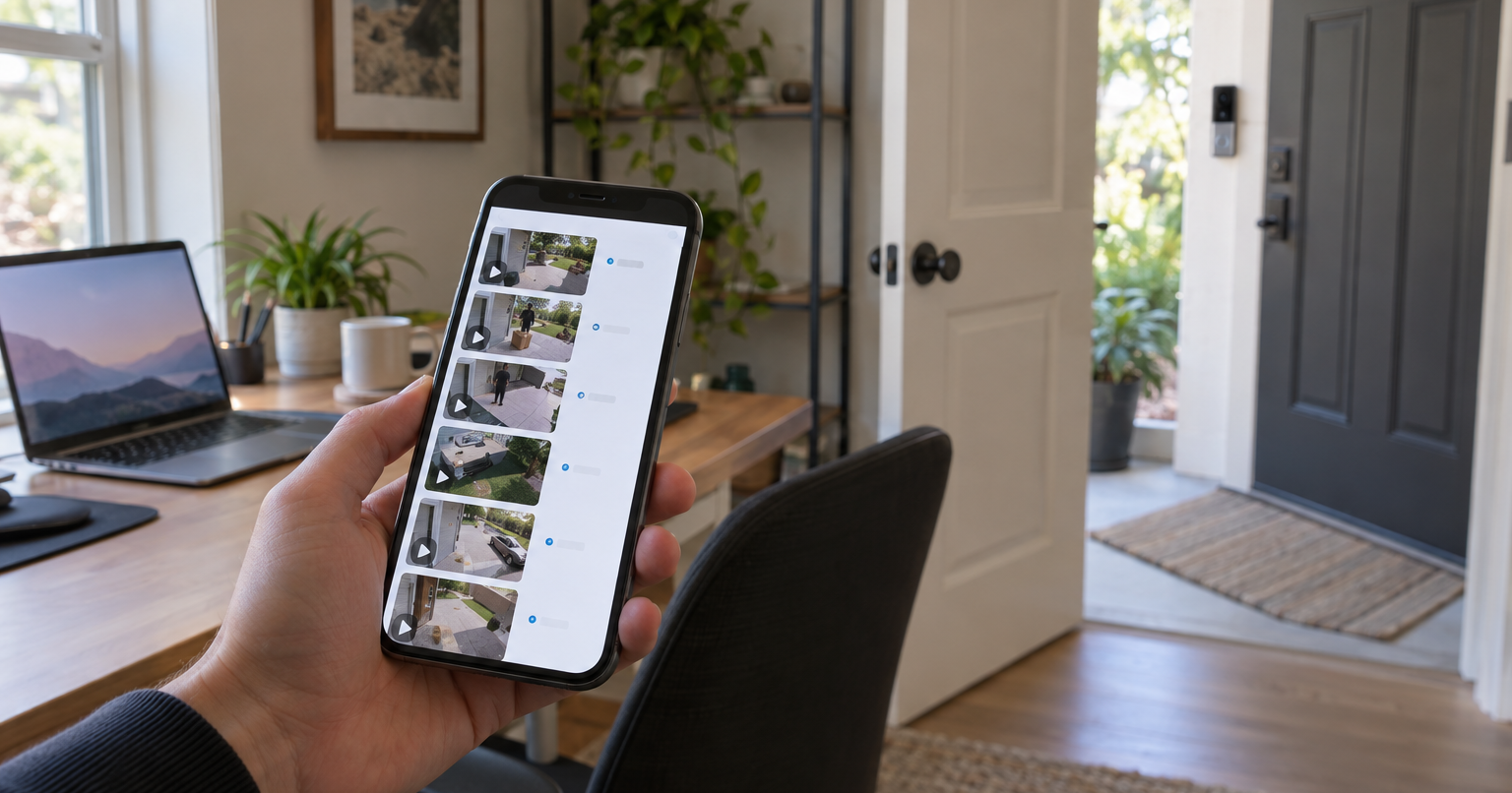
To open it for one doorbell: menu, Devices, the doorbell, then the Event History tile. For every device at once: menu, History, with filters for device and event type. Motion, rings, live views and the Smart Alert types (person, package, vehicle) show as separate event types. Watching the video of an event needs a subscription; for this test the timestamp is enough.
Walk up to the door, or wait for the next delivery, and compare. Three outcomes:
- No event at the time it happened. The doorbell did not detect the motion. Go to the next section.
- An event, but no alert on your phone. Detection works. Skip to "Events recorded, no alert on your phone".
- An alert, but no video to watch. Detection and alerts work; recording is the missing piece. The last section covers it.
After several quick presses of the doorbell button, notifications and Chime sounds do not work until the blue light stops spinning and the ring turns solid white.
Nothing in Event History: the doorbell is not detecting
This is the order we would use: the first four checks cost nothing, and each later one assumes the earlier ones passed.
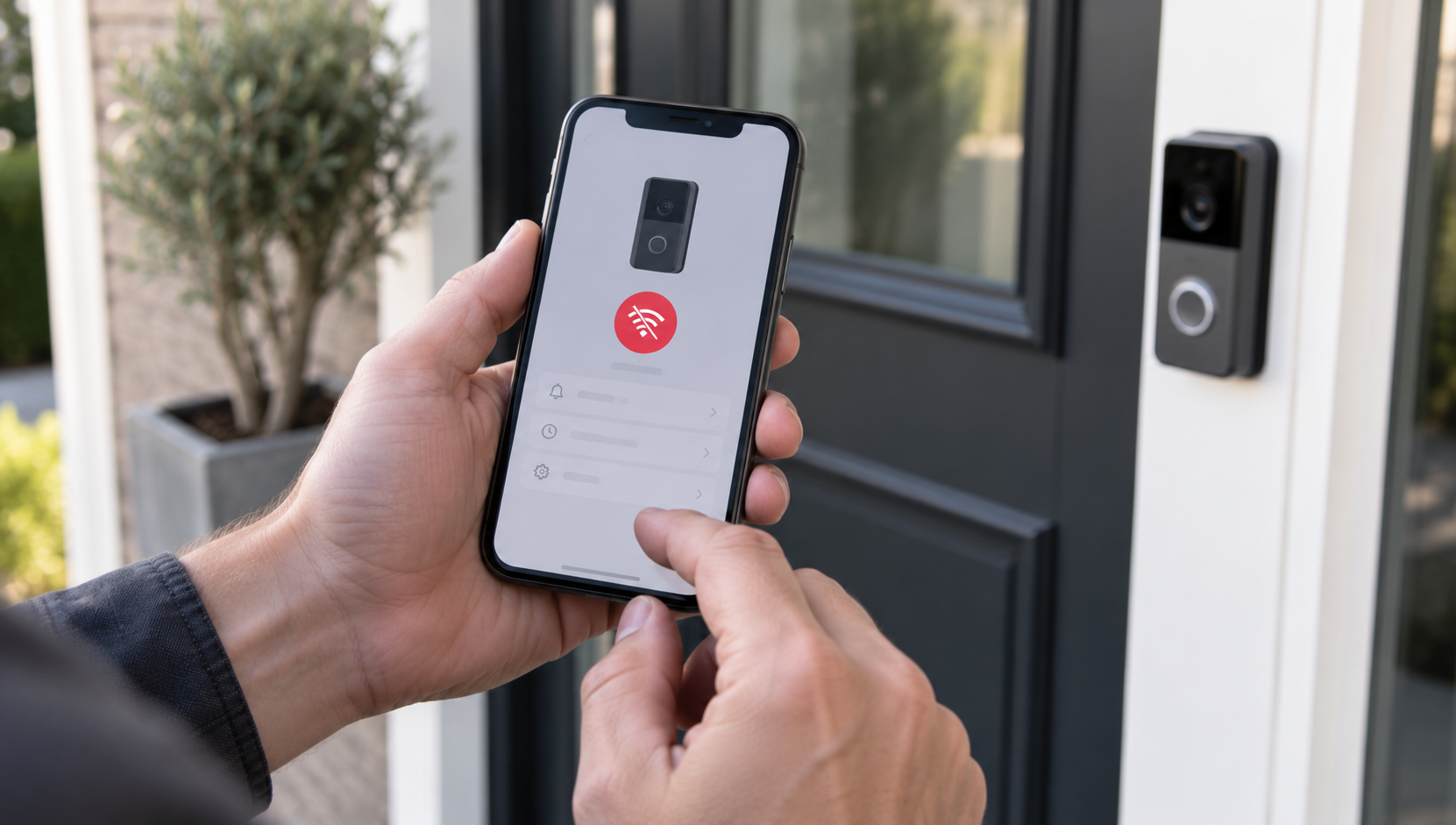
- Online. An offline device detects nothing. The dashboard shows the status; Device Health shows why. Getting a doorbell back online is its own guide.
- Motion Detection on. The top of the device screen has three separate toggles: Ring Alerts, Motion Detection and Motion Alerts. Motion Detection has to be on for the doorbell to detect and record motion at all; Motion Alerts being on does nothing while it is off.
- Modes. If Modes are enabled, Disarmed, Home and Away each have their own setting for whether the doorbell records, so there might be times when motion detection is off. Go to Mode Settings, disable Modes and test a motion event. If you are home all day and set the doorbell not to record in Home because you did not want the porch filmed while you work, start here: Ring does not say whether a Mode with recording off still logs the event, so test with Modes disabled.
- Motion Schedules. Delete any schedule, then test. Ring describes schedules in two different ways (see the note after this list); either way, a schedule is the next thing to rule out.
- Motion Zones. The zone has to cover the path to the door, not only the street. For this problem the only question is whether the missed spot is inside a zone. Setting up zones and sensitivity is covered in the motion settings guide.
- Motion Sensitivity. If the doorbell is missing motion events, try raising Motion Sensitivity. Lowering it shortens the detection range, so a slider pulled down to stop false alerts can stop real ones too.
- Battery doorbells: Motion Frequency and Advanced Motion Detection. Under Advanced Settings, Motion Frequency on Regularly or Periodically makes detection take a short or a longer break after each alert; a second visitor in that break is not seen. Set it to Frequently while testing. On the same screen, Ring recommends turning on Advanced Motion Detection for the most accuracy in motion detection on a battery-powered device, while its guide to managing alerts describes the same switch as a way to reduce unwanted alerts, so it cuts both ways.
- Privacy Zones. If the missed spot sits under a Privacy Zone, remove the zone for the test and put it back afterwards. Ring's motion troubleshooting says to "make sure Privacy Zones are not blocking areas you want to detect and record"; its privacy settings guide says "motion can still be detected behind areas blocked by Privacy Zones". Ring does not reconcile the two.
- A new doorbell: the film. Peel the protective film off the front. Ring ships its devices with it, and left on, it prevents the device from detecting motion.
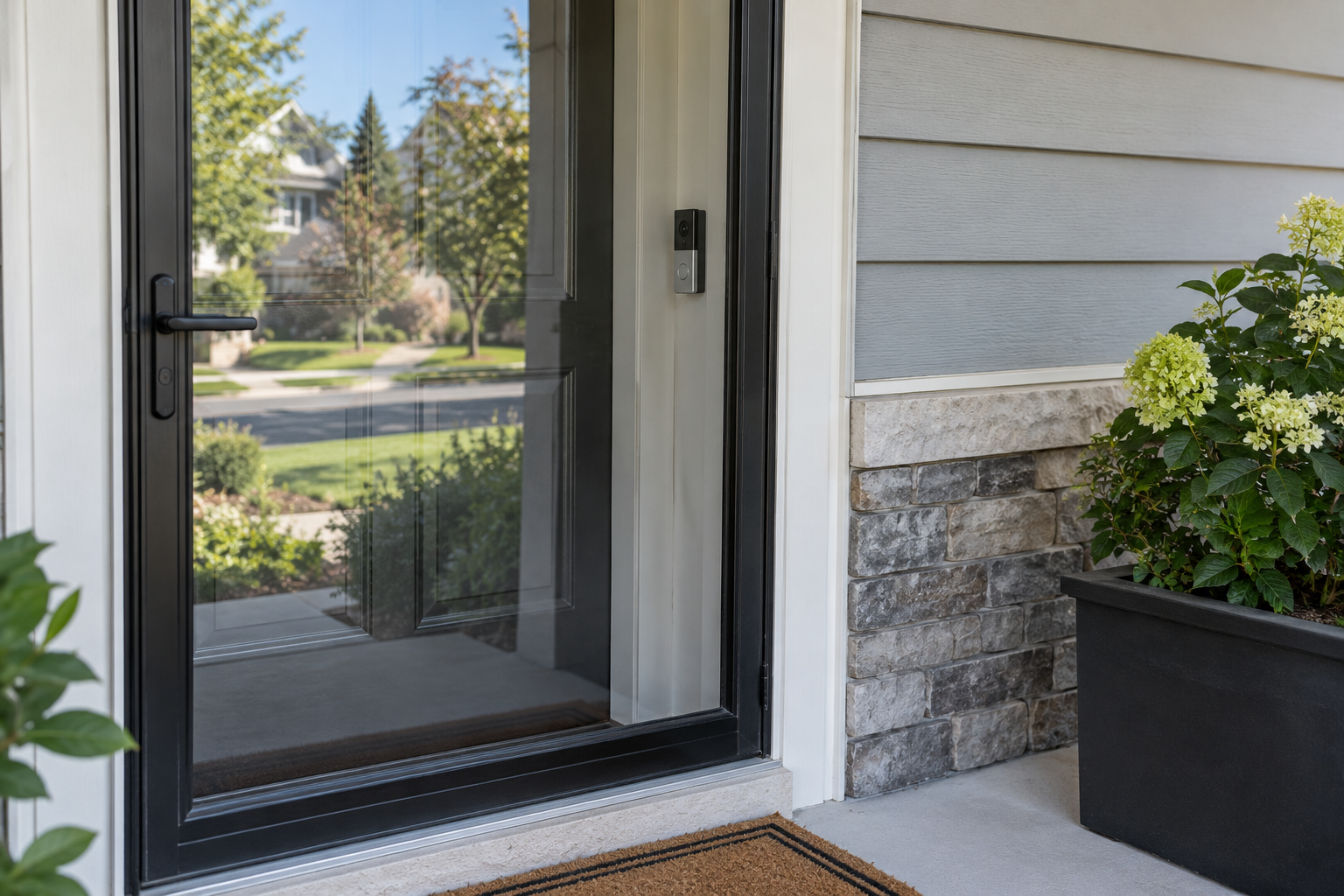
- Position and glass. Ring's positioning guidance puts doorbells at 48 in from the ground for motion detection; mounted too high or too low, a doorbell can detect motion inconsistently. Ring's warning that a camera facing "a window, screen, or other transparent barrier" can have motion detection problems is written for indoor cameras; our reading is that a doorbell behind a closed glass storm door is in the same position, and the test is the same: open the storm door and walk up. How far a Ring camera sees covers range and mounting in detail.
- Wifi signal. A poor signal can prevent optimal motion detection. Check Device Health, then Signal Strength under Network; the RSSI bands are in the offline guide.
Three general steps remain: update the Ring app and the phone's operating system, run the Motion Wizard from the Motion Settings screen, and check Bird's Eye Zones on devices that have them. If the doorbell still records nothing after that, Ring has no further checks and the next step is Ring support.
Motion Schedules, described two ways. Ring's guide to Motion Schedules says that during an active schedule "motion events will still be recorded, but no notifications will be sent." Its motion detection troubleshooting lists schedules among the reasons "motion detection is turned off", and elsewhere calls them "periods of time when you will not receive alerts". Our reading: a schedule switches off alerts, so a missed event during a schedule should still show in Event History, and the schedule belongs in the next section. Deleting the schedule and testing settles it either way.
Events recorded, no alert on your phone
This is the order we would use: the app settings first, because they sit on one screen, then the phone, where the steps each take a restart or a reinstall.
- Motion Alerts on. A recording without an alert can mean Motion Alerts is off. It is its own toggle at the top of the device screen, below Motion Detection, and both have to be on: Motion Detection covers recording and alerts, Motion Alerts is the notification.
- Snooze. The crescent moon icon at the top of the dashboard is Global Snooze; each device also has an Alerts Snooze tile. Both silence Motion Alerts while recording continues, and both keep Doorbell Rings and Priority Alerts on.
- Motion Schedules. A running schedule locks the Motion Alerts toggle: you cannot turn Motion Alerts on manually without canceling the schedule. A clock icon on the device dashboard means one is active.
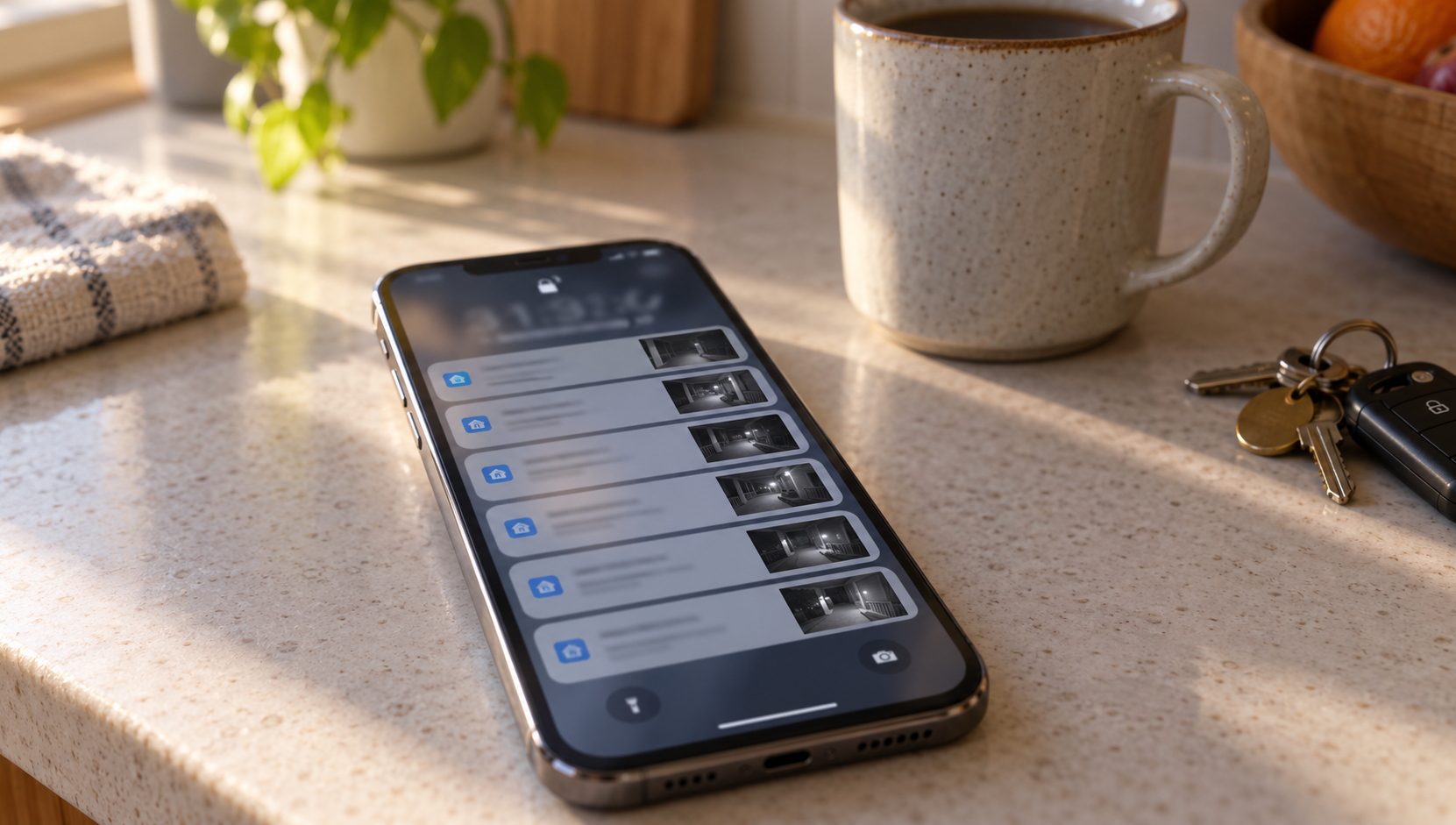
- Smart Alerts. With a subscription, Smart Alerts let you choose notifications, recordings, or both, separately for Person, Vehicle and Other Motion. A doorbell set to record Other Motion without notifying files a swaying branch or a shadow in Event History and says nothing. Check what Person is set to.
- The phone's notification permission. Allow notifications for the Ring app in the phone's own settings. The steps for iOS and Android are separate, and every phone and tablet has to be set individually.
- Focus and Do Not Disturb. A Focus mode that allows only your work apps silences Ring along with everything else. On iOS the setting is in Apple's Focus settings, on Android in the Do Not Disturb settings. For Do Not Disturb, Ring also has Priority Alerts: under Alert Settings you choose which alert types come through while Do Not Disturb is on; the rest stay hidden. If you work in a Focus all day, add Ring to the apps it allows, or the doorbell will be silent exactly when you are at the desk.
- Other checks. Make sure you are signed in to the app. Alerts make no sound during a phone call, a VPN might cause delays, and a smartwatch can be receiving the alert instead of the phone. Restart the phone, or uninstall and reinstall the app with your login ready. To separate an account problem from a phone problem in one step, trigger an event and check a second phone or tablet.
Alerted, but nothing to watch
Recording needs a Ring subscription, and only events that occur after you subscribe are recorded. Which devices record what, and for how long, is in do Ring cameras record all the time. Two settings from the lists above also reach recording: Modes can turn recording off per mode, and Smart Alerts can set a motion type to notify without recording.
Sources
Everything above comes from Ring's US support articles listed below, accessed in September 2026; where two of them describe the same setting differently, the text cites both. How we research explains the approach.
Ring Help, "Using Motion Detection" (Event History check, toggles, Modes and schedules, Privacy Zones, protective film, position, wifi)
Ring Help, "Troubleshooting notifications from Ring" (app settings, phone settings, Focus, VPN, smartwatch, second-phone test)
Ring Help, "Managing alerts for Ring doorbells and cameras" (the three toggles, Snooze, Priority Alerts)
Ring Help, "Using Device Modes for Ring Alarm, Cameras, and Doorbells" (recording per Mode)
Ring Help, "Setting up Motion Schedules" (recording continues, toggle blocked, clock icon)
Ring Help, "Setting up Smart Alerts" (notifications, recordings or both per motion type)
Ring Help, "Using privacy features in the Ring app" (motion behind a Privacy Zone)
Ring Help, "Positioning doorbells and security cameras" (48 inches, too high or too low, windows and glass)
Ring Help, "Viewing your Event History and Event Summary in the Ring app" (where to find it, event types, video needs a subscription)