
Ring Doorbell Not Ringing Inside the House? What to Check, by Chime
The phone buzzes and the house stays silent. Whether the sound should come from the wired chime, a plug-in Ring Chime or an Echo decides where to look: the chime setting, the Ring doorbells that cannot ring an old chime at all, the wiring test, or the Alexa switches that keep an Echo quiet.
What to know
- Wired chime silent: check the app first. The Chime Type matches the chime, the "Ring my In-home Chime" toggle is on, and the doorbell is online.
- Four Ring doorbells cannot ring an existing chime: Video Doorbell Wired, Peephole Cam, Wired Doorbell 2K Plus, and the 4K Pro unless it runs on PoE. Installing a Wired Doorbell 2K bypasses the old chime as well.
- A plug-in Ring Chime rings only for doorbells linked to it under Linked Chimes, with Rings selected, and Chime Snooze silences it for the time you set.
- An Echo announces a doorbell press only with Doorbell Press Notifications on in the Alexa app, Announcements and communication on for that Echo, and Do Not Disturb off; shared Ring devices never announce.
- The bridge test: with the doorbell off the wall, touch a screwdriver to both terminal screws or touch the two doorbell wires together. A correctly wired chime sounds; silence points to the chime or the wiring.
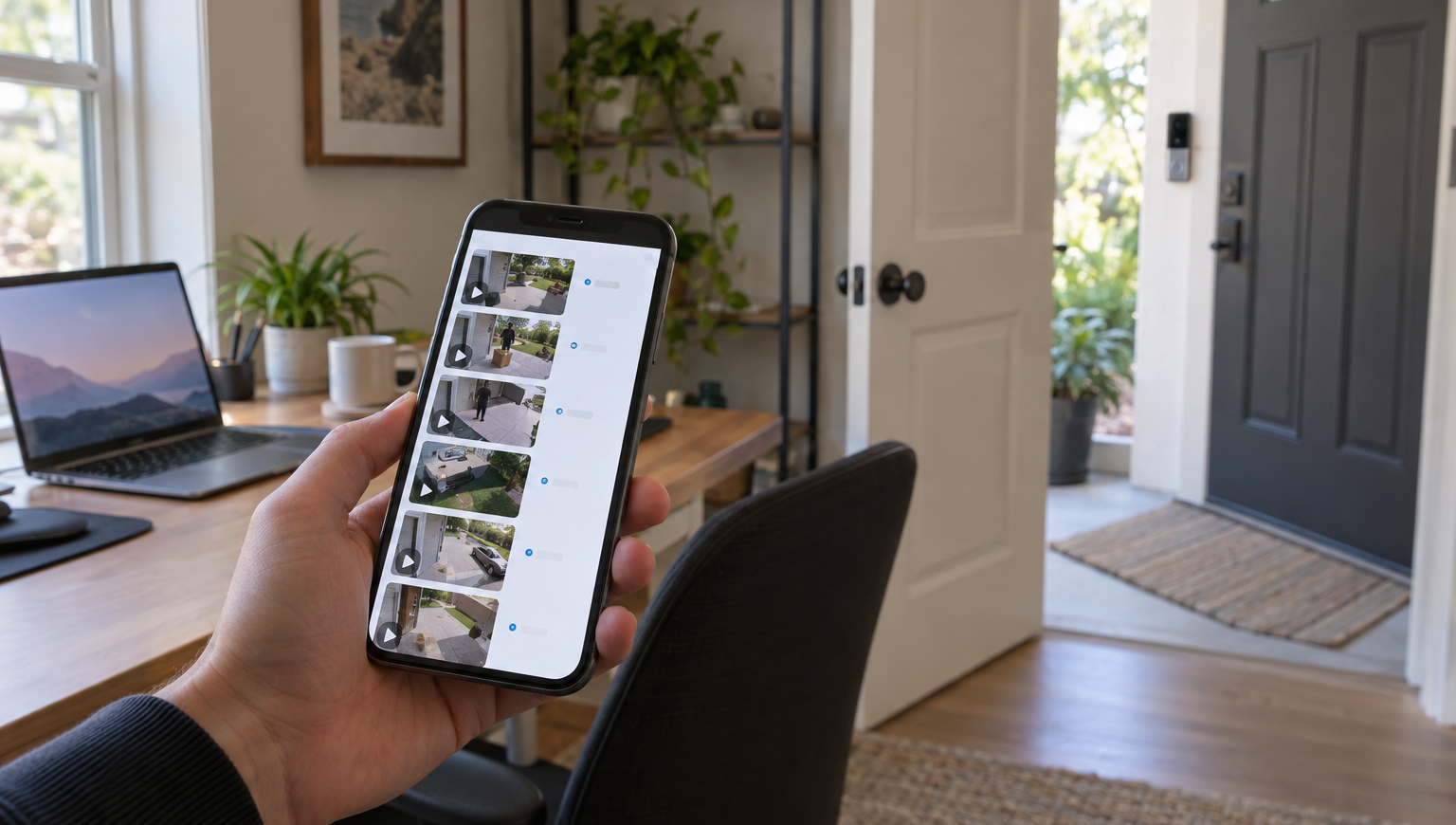
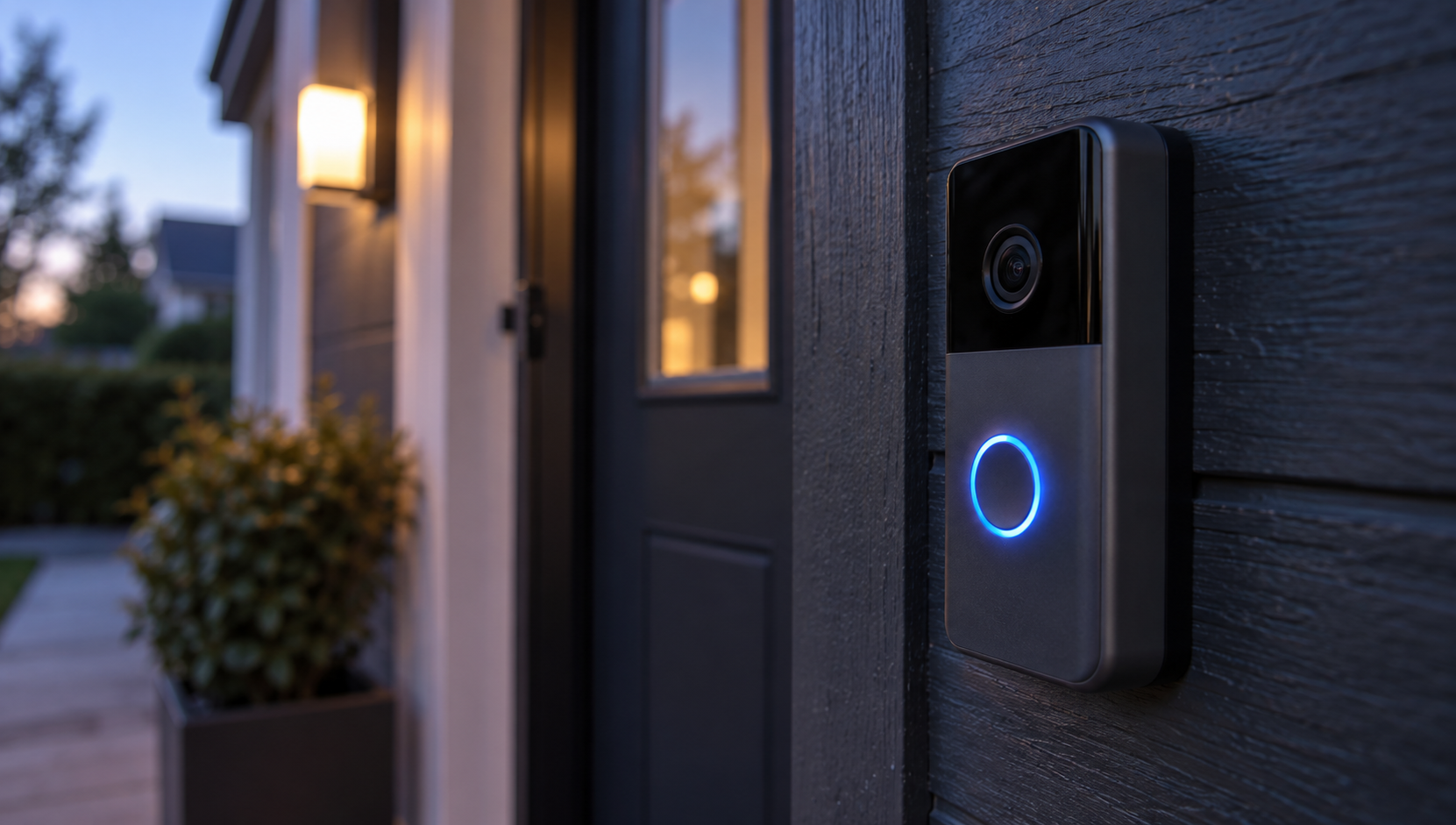
When a Ring doorbell is pressed, three different things can make a sound indoors, and the fix depends on which one you were expecting. The old wired chime in the hallway rings only if your model can drive it, the app's In-home Chime Settings match it, and the wiring reaches it. A plug-in Ring Chime rings only for the doorbells linked to it, and only when it is not snoozed or offline. An Echo announces the door only when the Alexa app and that Echo have the right switches on and Do Not Disturb is off. The phone notification is a fourth system and says nothing about the other three: a doorbell that shows up on your phone and stays silent in the house is working; the silence is in a setting, the wiring or the chime.
These steps cover Ring's US doorbells, the plug-in Ring Chime and Echo speakers, with the app paths as Ring gives them. Several doorbells were renamed in July and August 2026, so the comparison guide has the current lineup and shows which of them can ring a chime at all.
The wired chime in the hallway: the model, the setting, then the wiring
First check whether your doorbell can ring an existing chime at all. Ring lists four models that cannot: the Video Doorbell Wired, the Wired Doorbell 2K Plus, the Wired Doorbell 4K Pro unless it is powered over Ethernet, and the Peephole Cam. On those, the sound indoors comes from a Ring Chime, a Chime Pro or an Echo, and on the 2K Plus and the non-PoE 4K Pro also from the Chime Kit Mini in the box, covered in the next section. Every battery doorbell on doorbell wiring, and the Wired Doorbell Plus and Pro, can ring a chime that is on the compatibility list.
The Wired Doorbell 2K is a fifth case. Ring's installation guide has you connect the bypass cable from the box across the chime's Front and Trans terminals, which takes the chime out of the circuit, so after that installation the old chime does not ring. Ring's other documents describe the 2K differently: the in-home chime guide does not list it as unsupported, and the hardwiring table puts it under doorbells that connect to an existing chime. That table also contains the Video Doorbell Wired, which Ring calls not compatible with chimes, so it is about wiring rather than about whether the chime rings.
If the model can ring a chime, check the setting before the wiring. In the app, go to menu, Devices, the doorbell, Device Settings, In-home Chime Settings. What you find there depends on the doorbell:
Battery doorbells. Let the app detect the chime and test it:
- Tap Automatic Chime Detection and let the app detect the chime.
- Tap "Ring my In-home Chime" and press the doorbell button when the app asks.
- If the chime did not ring or rang partially, tell the app so. It adjusts the settings.
- Test again when the app asks.
Under Advanced Settings you set the same thing by hand: Chime Type None, Mechanical, Digital Type 1 or Digital Type 2, then the same toggle. If the chime still does not ring correctly, select a different Chime Type, wait a few minutes and press the button again.
Wired doorbells. Set the chime by hand:
- Select the Chime Type: Mechanical, Digital or None.
- Turn the in-home chime toggle on.
- Tap Save.
- Give the doorbell a few minutes to update before testing.
Pick the Chime Type by the sound your chime makes. A mechanical chime uses a bell and a hammer for the ding-dong, a digital chime plays recorded tones through a speaker, and "None" is for a Plug-In Adapter, a bypassed chime, or a doorbell wired straight to a transformer. Check the setting before you test; Ring asks for that to prevent damage.
If the chime buzzes, stays silent or only half sounds, start in the app: the Chime Type matches the chime, the "Ring my In-home Chime" toggle is on for doorbells that require hardwiring, and the doorbell is online, with other functions such as Live View working.
Then the wiring: check the hardwiring configuration, move any wires or power accessories away from the chime's moving parts, and run the bridge test. For that test, take the doorbell off the wall and touch the metal of a screwdriver to both terminal screws at once, or touch the two doorbell wires together. If the wiring is correct, you will hear the chime. A silent test means the chime or the wiring is the problem, and the doorbell is not. Do not run the test on a bypassed chime or a doorbell wired directly to a transformer. Ring puts an electrical-hazard warning on the whole procedure: disconnect power at the breaker before handling wiring, and a qualified electrician and permits may be required by law in your area.
Two things decide whether the wiring can work at all. The chime has to be on the compatibility list, one for battery and PoE doorbells and one for the Wired Doorbell Plus and Pro; both carry an incompatible list too, with the warning that an incompatible chime or transformer "could damage your devices". On many chimes the model is printed inside the cover or elsewhere inside the chime. And the transformer has to be in range. Ring's hardwiring table gives these ranges:
- Battery doorbells: 8 to 24 VAC
- Video Doorbell Wired and Wired Doorbell 2K: 10 to 24 VAC
- Wired Doorbell Plus, Pro, 2K Plus and 4K Pro: 16 to 24 VAC
Ring's tech specs for the Wired Doorbell 2K say 16 to 24 VAC, though, so for that model the narrower figure is the one to use. The same table has two rows that catch older installs: with a digital chime, the Video Doorbell (Ring's first model) and the Video Doorbell 2 need a diode; every other model does not.
A previous installation may also have bypassed the chime by joining the two chime wires under a wire nut, one of the wiring options Ring lists for a battery doorbell. A bypassed chime cannot ring, whatever the app says, and the setting for it is "None".
Chime Kit Mini: the two models that replace the chime
The Wired Doorbell 2K Plus, and the Wired Doorbell 4K Pro on doorbell wiring, cannot ring an in-home chime. Both ship with a Chime Kit Mini, a small speaker that takes over from the in-home chime with a single ringtone. After installation it bypasses the old chime, and the ding-dong is gone. If one of these doorbells was installed by joining FRONT and TRANS without the kit, the alternative Ring describes, nothing in the house rings when the button is pressed; a Ring Chime, Chime Pro or Echo brings the sound back. The kit does not work with a Plug-In Adapter. The PoE version of the 4K Pro is the exception and can still use the existing chime.
If a second doorbell shares the chime, the old one can stay on the old chime while the new one gets the kit. Ring's wiring order for that starts with leaving the TRANS wire on the chime and assumes the new doorbell is on the FRONT terminal, so check which terminal each doorbell is on before touching anything.
The plug-in Ring Chime: linked, snoozed, or offline
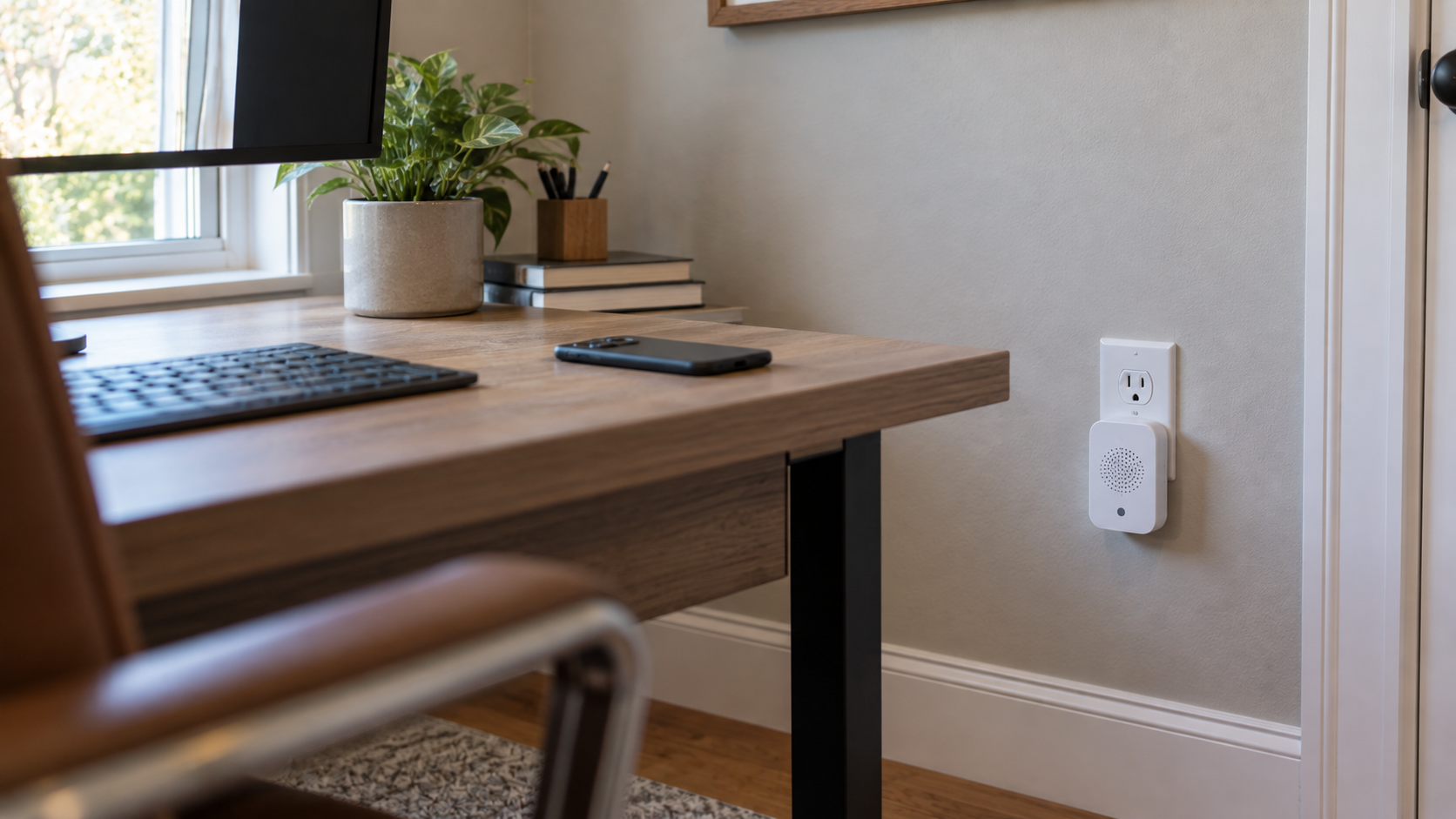
A Ring Chime, Chime Plus or Chime Pro rings for a doorbell only if that doorbell is linked to it. The setting is on the doorbell:
- In the app, open the menu, then Devices, then the doorbell.
- Tap Linked Chimes.
- Select Rings for doorbell presses, Motion Detected for motion, or both.
- Pick a tone and let it finish playing before you tap Save; saving while a tone is still playing can revert the selection to the default.
A Chime that sounds for motion and stays silent for the button has Rings unselected; one that sounds for the button and stays silent for motion has Motion Detected unselected. The Chime and the doorbell have to be set up under the same location in the app; they do not have to be in the same room.
Next, check Chime Snooze under the Chime's Device Settings. It silences the Chime for a preset length of time; to end it early, go back to that screen, tap Turn off Snooze and tap Save. A Chime that went quiet at a set moment and came back on its own points to a snooze.
Then the connection. The front light shows what the Chime is doing, and a Chime showing red has a network problem to solve first. Ring's Chime light patterns leave out the Chime Plus. Our light-pattern guide has the full table for both generations. On the Chime and Chime Pro (2nd Gen):
- Flashing blue circle: trying to connect
- Flashing red: no internet
- Solid red: failed Wi-Fi connection
- No light: online idle mode
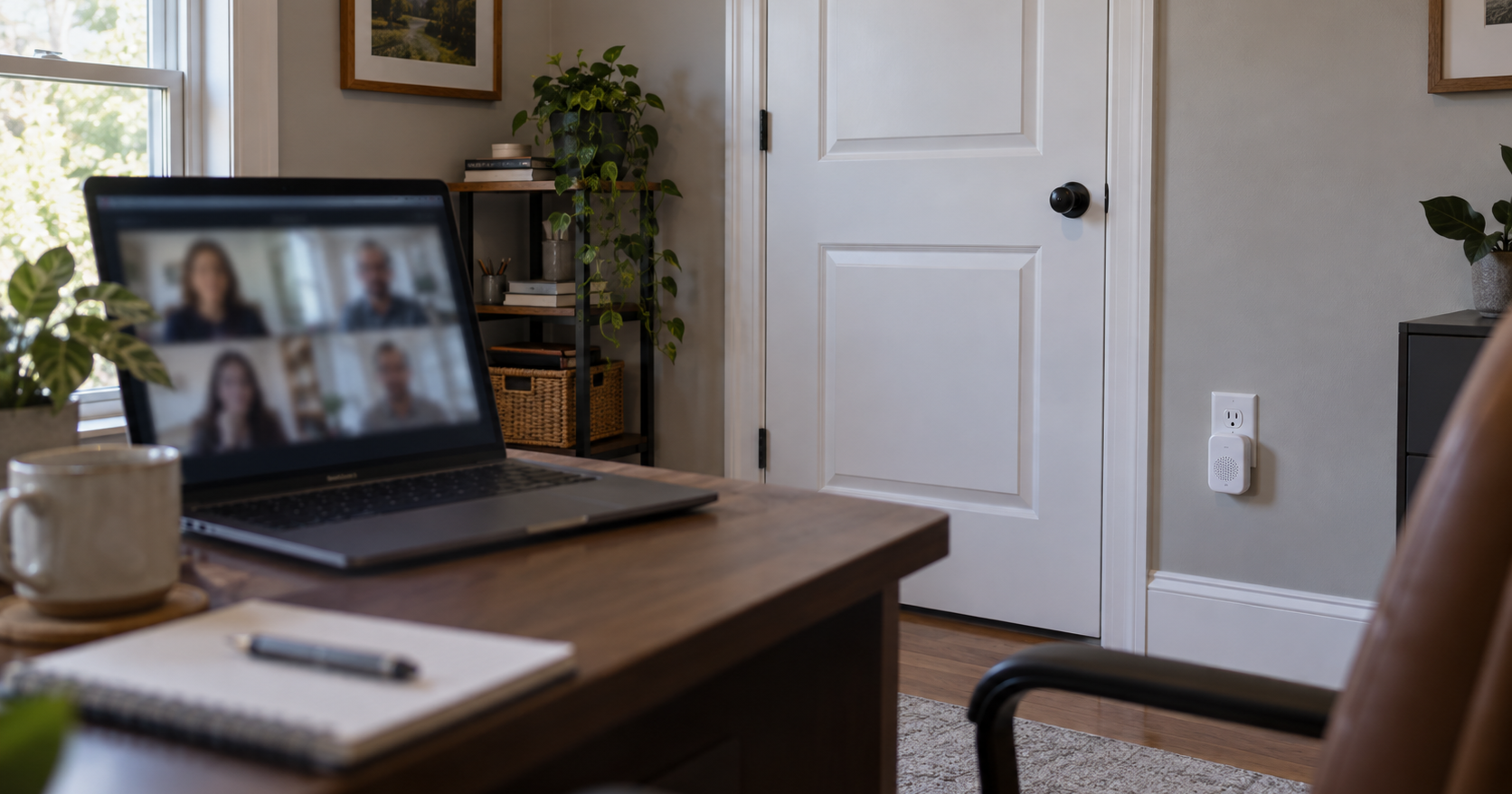
For someone who works at home with the door shut, the plug-in Chime is the device for the office outlet: the phone is on silent for calls and the hallway chime is two rooms away.
Alexa: the Echo that stays quiet when the doorbell is pressed
An Echo announces a doorbell press through Alexa Announcements, and Ring lists what has to be on: the Doorbell Press Notifications toggle on the doorbell's page in the Alexa app; on each Echo that should speak, its communication and Announcements features on and Do Not Disturb off; and under Announcement Devices, the Echos that should announce (if several are enabled, all of them announce). Announcements are supported in the United States, United Kingdom, Canada, Mexico, Germany, France, Italy and Spain, and not for shared devices, so a doorbell shared to your account from someone else's will never speak through your Echo. A compatible Echo with a screen also shows Live View for 15 seconds after the press.
On a quiet Echo, this is the order we would use, because each check takes longer than the one before it:
- Do Not Disturb on the Echo.
- The Doorbell Press Notifications toggle in the Alexa app.
- Announcement Devices.
- Whether the doorbell is shared rather than owned.
The phone notification is a separate system
None of the above touches the notification on your phone. A phone alert that arrives shows only that the doorbell registered the press and is online, which is the third check for the wired chime. A phone that stays silent while the chime rings is a notification problem; the motion guide covers the app, phone and Modes settings that swallow an alert on the way to the phone.
Sources
Everything above comes from Ring's US support pages below, accessed in September 2026; app paths and quoted wording are Ring's. How we research explains the approach.
Ring Help, "Configuring and troubleshooting your in-home chime" (unsupported models, chime types, app path, automatic detection, advanced settings, troubleshooting list, bridge test, hazard warning)
Ring Help, "Chime Kit Mini information" (which doorbells require it, single ringtone, bypass, Plug-In Adapter, PoE exception, shared chime wiring order)
Ring Help, "How to link a camera or doorbell to your Chime" (Linked Chimes, Rings and Motion Detected, same location, Chime Alerts tones, Chime Snooze, tone caution)
Ring Help, "Understanding Chime light patterns" (Chime and Chime Pro 2nd Gen: trying to connect, no internet, failed Wi-Fi, online idle)
Ring Help, "Managing Alexa Announcements for Ring devices" (Doorbell Press Notifications, Echo requirements, Announcement Devices, countries, shared devices, 15-second Live View)
Ring Help, "Guidelines for Hardwiring Your Ring Video Doorbell" (transformer ranges per model, diode table, chime table)
Ring Help, "Hardwiring your battery-powered Ring doorbell" (wiring options including bypassing an in-home chime, hazard warning)
Ring Help, "In-home chime kit compatibility list for battery and Power over Ethernet (PoE) doorbells" (compatible and incompatible chimes, damage warning, finding the chime model)
Ring Help, "In-home chime kit compatibility list for Wired Doorbell Plus and Pro" (compatible and incompatible chimes for the Plus and Pro)
Ring Help, "Installing Wired Doorbell 2K" (bypass cable across the chime's Front and Trans terminals)
Ring Help, "Wired Doorbell 2K" (tech specs; 16 to 24 VAC transformer, bypass cable in the box)